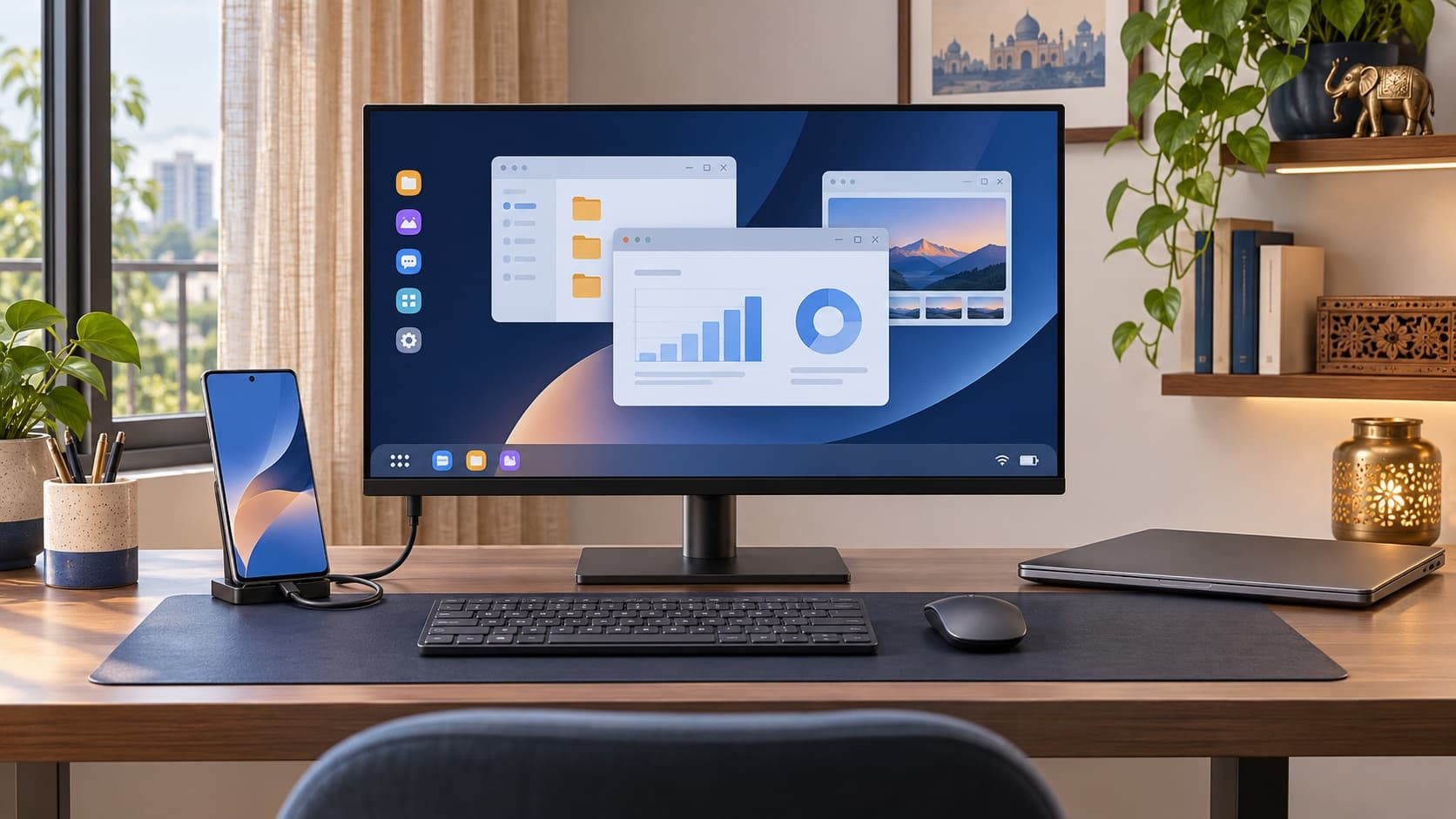
Samsung DeX for PC is no longer supported on Galaxy devices running One UI 7 or later, according to Samsung India's support guidance. That does not mean every form of DeX has disappeared: connecting a supported phone directly to a compatible monitor or TV is a different arrangement. Identify the connection you need before buying accessories, approving a repair or replacing your Galaxy.
Already planning a change of handset? Check your Galaxy S24 Ultra sell quote while you compare your actual work requirements. An unsupported PC-software route is not, by itself, evidence that the phone has a damaged charging port or cannot serve another useful role.
Why the words DeX for PC matter
A description such as DeX stopped working leaves an important question unanswered: what was the phone connected to? You might mean a Windows computer running a companion application, or a separate monitor receiving output from the handset. Those arrangements can look similar in a photograph while having different support requirements.
Start by naming the equipment and the intended result. If your goal is a phone workspace inside a computer session, say that. If your goal is a larger standalone display for supported mobile apps, describe that instead. This small distinction can save an unnecessary purchase made to solve the wrong problem.
For Indian owners weighing the cost of an upgrade, the practical question is whether the phone still supports the tasks you need through an appropriate route. It is not enough to hear that a feature is discontinued without checking which feature the statement refers to. Likewise, a general claim that DeX exists does not establish that your old PC arrangement remains supported.
This guide separates the connection choices, helps you test a realistic workflow and shows how to compare keeping the phone with selling it. It does not promise that any mobile setup replaces every Windows application or that a particular accessory makes every Galaxy compatible.
What Samsung says about One UI and the PC service
Samsung India's PC-connection notice says DeX for PC is unsupported from One UI 7 onward. It also distinguishes the earlier One UI 6 position, where availability remains but technical support is no longer provided. Read that scope carefully rather than treating an old download button as a guarantee for your present software.
The same notice points users towards Link to Windows for supported wireless integration tasks. That is a change of workflow, not a promise that the replacement behaves identically. Make a list of the specific old functions you relied on and compare those functions with the available alternative.
Check the software information on your own handset before following an older tutorial. An article written for an earlier setup can accurately describe that setup while failing to apply now. The useful response is to match the instructions to your equipment, not to assume that repeated installation attempts will change the published support position.
Do not infer a hardware failure from a discontinued software route alone. If the phone also has a separate charging or connection symptom, describe it separately and obtain the appropriate checks. An unsupported application and an assessed physical fault are different findings.
Compare the connection routes before spending
Use this table to organise your enquiry. Availability depends on the device, installed software, display and relevant services. Confirm your particular combination with the manufacturer's applicable guidance before you buy anything.
| Arrangement | What you are trying to achieve | Key support question | Purchase mistake to avoid |
|---|---|---|---|
| DeX for PC | A DeX workspace through the companion software on a computer. | Does the published software support position permit this route? | Buying another cable to restore a service unsupported on your software. |
| Direct wired DeX | A supported handset connected to a compatible external display. | Do the phone, connection and display meet the requirements? | Assuming every USB-C accessory provides the needed display function. |
| Wireless DeX | A supported phone using a compatible wireless display arrangement. | Does the intended receiving display support the required connection? | Treating a general wireless label as complete compatibility proof. |
| Link to Windows | Supported phone tasks integrated into a Windows-computer workflow. | Are the specific functions you need available in your setup? | Assuming it recreates the same Android desktop session. |
| Ordinary file transfer | Moving a document between devices rather than running a desktop workspace. | Which transfer method suits the file and destination? | Buying a new phone for a task that does not require DeX. |
If a different handset already fits your plans, find your Samsung model's buyback page and check your instant quote. Keep the pricing enquiry separate from compatibility testing, with any actual functional fault disclosed.
Link to Windows is an alternative with a different purpose
Samsung describes Link to Windows as enabling supported tasks such as calls, texts and access to certain apps from a Windows computer. Its India notice explicitly says the former Android desktop screen on the PC is not reproduced by that replacement. Decide whether the supported tasks answer your need rather than expecting an identical interface.
If you mainly wanted to handle phone-related interruptions while working on a computer, investigate that use case directly. If you needed a desktop-like mobile workspace on the computer screen, acknowledge that this is a different requirement. The distinction matters more than whether both products appear under a broad connectivity heading.
Test the actual tasks in the supported arrangement available to you. Open the service you need, follow the relevant setup instructions and check whether you can complete the normal activity. A successful pairing or a familiar icon does not establish that every part of your work is covered.
For a managed office computer, ask the administrator what is permitted before adding accounts or changing connectivity settings. Your personal phone's capabilities do not override the computer's rules. Bring a clear task description so the administrator can answer the workflow question rather than guessing what you intend to access.
Direct monitor use is a separate compatibility check
Samsung's DeX guidance lists direct cable and wireless display options for supported devices. A standalone monitor arrangement does not depend on the same PC companion application described above. Verify the phone and intended connection in the compatibility information instead of relying on a photograph of another owner's desk.
Write down the monitor model and available inputs, the accessory you intend to use and the phone's installed software. These are useful details for the seller or support provider. A general statement that you own a monitor and a charging cable may not answer the compatibility question.
Where possible, confirm the arrangement through an appropriate demonstration or an applicable return policy before committing to accessories. Ask what is included in the sale and what additional equipment is needed. Do not assume an accessory pictured in marketing material is bundled with the product you are buying.
Keep the evidence narrow. If the phone produces a workspace on one supported display, that establishes a result for that combination. It does not guarantee identical behaviour with every television, hub or workplace setup you may encounter later.
Check older docks and accessories independently
Samsung's current DeX FAQ includes a separate warning that DeX Pad and DeX Station are unsupported on Android 16 with One UI 8. This illustrates why a familiar dock name is not enough: accessory support and installed software also need to match. Do not use an old compatibility list without its current notes.
If you already own equipment, record exactly what it is before deciding whether to replace the phone. You may be comparing an accessory change with a broader workflow change. Those alternatives can have different practical costs, and neither should be selected from an assumption about what must have failed.
If an accessory seller says a product works, ask which device, software and connection route that statement covers. A useful answer should identify the arrangement rather than simply repeat the DeX name. Keep the product description and relevant terms for your own comparison.
Do not force connectors, dismantle equipment or continue using visibly damaged accessories as part of a test. This is an ordinary compatibility enquiry, not a component-repair exercise. Ask an appropriate provider about a physical concern rather than using software support notes to diagnose it.
A desktop-like screen does not make every app a desktop app
Samsung's India DeX page cautions that some apps may not run or may require a separate purchased licence. Check the actual application and subscription arrangement you need. A larger display alone does not promise that a phone app has the same tools or behaviour as software on your computer.
Start with a representative work file that contains no unnecessary sensitive information. Try the actions that matter: opening it, making the kind of change you normally need and retaining the result in the intended destination. Your assessment should follow the complete task rather than the first successful screen.
For a document workflow, ask whether you can comfortably review and edit the material you use most often. For a presentation workflow, test the actual presentation arrangement you expect to use. These are practical checks you can define without assuming that every mobile application will satisfy every professional requirement.
If a particular app is the limiting factor, investigate that app's supported options before buying another handset. A replacement phone may still run the same mobile software. The purchase should address the demonstrated limitation rather than simply offer newer hardware.
Build a task list before comparing devices
List what you expect the setup to do during an ordinary day. Keep each item concrete: review a document, answer a message, attend to a particular work application or present material on an available display. Avoid a vague goal such as replace my laptop until you have defined what that laptop actually does for you.
Mark each task as essential, convenient or occasional. An occasional preference should not silently outweigh a required work function. Equally, an essential function that fails in the proposed arrangement should remain visible even if the desktop interface looks attractive.
Identify where the information begins and where it must end. Opening a file is only part of a workflow if the edited result needs to reach a colleague or another system. Test the supported route for retaining and delivering your work instead of assuming that a successful display connection completes the job.
Keep private credentials out of the task list. You can record that a particular account must be accessible without writing down its password. The list should help you test a setup, not create another copy of sensitive information.
Give each essential task a clear completion check
Decide what evidence would satisfy you before running a demonstration. For a document, you may want the intended edit saved and readable in the required destination. For a communication task, you may need the relevant service to work through its appropriate setup. Choose the checks according to your own needs rather than a promotional demonstration.
Keep a small result sheet with worked, did not work and not yet tested. This is more useful than a general impression that the setup seemed fast. An untested essential task should stay open until you have answered it or decided on an acceptable alternative.
If another person demonstrates the equipment, ask to see the task you care about using non-sensitive sample material. A video of a different application may be interesting, but it does not establish that your required operation is supported. Ask the specific question before spending.
Plan an Indian home-office setup around what you already own
Make an inventory of the equipment you would actually use: display, input devices, appropriate connection accessories and the available working space. Separate owned items from proposed purchases. A setup that appears inexpensive because it assumes several accessories are already available may not be inexpensive for you.
Put the actual quoted cost in ₹ beside each missing item. This guide does not invent a universal accessory bundle price, because the right figure depends on the compatible products and terms you can buy. Compare complete arrangements rather than one low-priced component from each of several incompatible offers.
Include the software or licence costs relevant to your work. If an application requires a paid arrangement, establish the terms before calling the new setup free. Your comparison should use the complete amount you would need to spend, not only the hardware price.
Then consider convenience. Will you use the same desk regularly, or do you need to move between locations? Do you have suitable equipment where you plan to work? A setup can be useful at home without becoming a guaranteed replacement for every travel or office situation.
Plan presentations and travel use separately
A fixed home-office arrangement is easier to understand than an unknown meeting-room display. Before relying on a phone-based presentation, ask about the actual equipment available and the connection route permitted there. Do not assume that every display can receive the arrangement you demonstrated elsewhere.
Prepare the material you intend to present through the applicable app and file process. Test the parts that matter to the meeting rather than only confirming that the phone's screen appears. If the task is important, allow time to resolve a compatibility question before the occasion itself.
Keep an appropriate fallback plan for your circumstances. That might be a separately prepared file or another approved way to present, depending on the organisation and equipment. This guide cannot promise that one accessory or handset covers every venue.
Do not connect private material to an unfamiliar shared display without understanding what will be shown. Use a non-sensitive test and review the available controls. A productive demonstration should establish the intended result while keeping unrelated personal information out of view.
Use three real tasks to judge a proposed setup
Reviewing and editing a document
Choose a non-sensitive sample that resembles your ordinary work. Try the kind of edit you expect to make, then save the result and open it in the destination where it will be used. Note any limitation that changes whether the arrangement is practical. A large screen is useful only if you can complete the work you brought to it.
If the sample succeeds, record the application and connection arrangement you tested. If it fails, describe the exact operation rather than calling the whole setup unusable. You may have discovered an app limitation, a configuration question or a task that belongs on the computer. Keep the outcome specific enough to guide the next decision.
Handling phone tasks while working on a computer
Write down which interruptions you wanted to manage from the desk and test the supported integration for those tasks. You may discover that the alternative meets this narrower need even though it does not reproduce your old workspace. That can be a useful result without turning it into a claim that the products are identical.
For a work-managed environment, establish the permitted account and connection arrangement first. Do not use personal access as a way around an organisational restriction. A setup should be practical within the rules of the environment where you will actually use it.
Preparing material for a shared display
Use a sample presentation and test the available display connection before the important occasion. Check that the material is readable and that you can perform the actions needed for the session. A desktop appearing on the monitor is the beginning of the demonstration, not its final result.
Record any equipment dependency so you can plan for a different room. If a necessary adapter or display arrangement will not be available, decide on an appropriate alternative before travelling. Keep your conclusion grounded in the equipment you can actually use rather than the ideal desk shown in an advertisement.
Decide what would justify spending more
After the tests, identify the remaining task that a purchase would solve. If you cannot name one, pause the buying decision while you clarify the need. If you can, ask the seller to demonstrate that exact outcome under the proposed arrangement and review the complete cost and terms.
This approach makes the budget comparison concrete. You are choosing equipment for a demonstrated purpose, rather than replacing a useful handset because several connection products share a familiar name.
When to ask support rather than buy another cable
If your question concerns a published unsupported PC route, start by acknowledging that support position. Repeating the same installation with several cables does not change it. Ask which supported alternative can serve the task you have identified.
If a direct supported setup fails, give support the device, software, display and accessory details. Explain what appears on each screen and whether another applicable arrangement works. This gives the provider a useful starting point without declaring a particular port or internal component defective.
If the problem is intermittent, describe that accurately. A successful attempt and a later failed one are both relevant. Do not choose whichever result makes your preferred upgrade decision look easiest; let the assessment consider the actual behaviour.
Keep a record of the provider's explanation. A compatibility restriction, an unresolved symptom and a confirmed repair recommendation are different findings. Use the correct description if you later compare service costs or request a buyback quote.
Should you keep your Galaxy after the PC change?
Keep it if another supported route meets the need
If the phone still performs your normal tasks and a supported connection arrangement covers your work, continued use may be sensible. Evaluate the complete task and the practical cost before deciding. You do not need a new handset merely because an old companion-software workflow is no longer supported.
Give yourself a representative trial rather than relying on a brief demonstration. Use the arrangement for the work you actually expect to do and note any limitation that remains. This helps you decide whether the alternative is comfortable enough to keep, not just technically possible.
Change the workflow if the computer is still essential
If essential work depends on the computer's own software or an organisational setup, keep that requirement central. Phone integration may still be convenient without replacing the computer. You can use a supported arrangement for selected tasks while retaining the equipment necessary for others.
Do not force the comparison into a single winner. Your phone and computer can serve different roles, and replacing one may not solve the other's limitation. Spend according to the task that is actually blocked.
Upgrade only when the proposed phone solves a demonstrated need
If you are considering another Galaxy, verify its compatibility for your intended route and installed software. A newer purchase should not be justified by an assumption that it restores DeX for PC on software where Samsung says that service is unsupported.
Ask what concrete improvement you are buying. It may be relevant to other phone functions or a different supported workflow, but state that benefit honestly. A model name and a higher price do not establish that an old software arrangement returns.
Separate an unsupported feature from a physical fault
The absence of support for a connection route is not the same as a damaged handset. If the device charges or transfers information through another appropriate process, describe those observations without turning them into a complete hardware certificate. If there is a separate persistent fault, keep it visible.
Before approving service, ask what the provider has assessed and what work it proposes to perform. Request the total payable amount in ₹ and the applicable terms. This guide does not publish an invented port-repair price or suggest replacing parts to resolve a documented software-support change.
A repair may make sense for an assessed physical problem if you otherwise want to keep using the phone. Evaluate that continued-use benefit separately from any expected resale improvement. There is no automatic rule that a repair bill comes back through a higher selling price.
If you only want to sell, obtain an accurately described as-is quote before spending purely on sale preparation. Let the assessment consider the actual physical and functional condition, rather than adding a guessed deduction because you no longer use a particular PC application.
Compare keeping and selling with real amounts
Use the ReUz search for your exact Galaxy variant while you can check the device information. Select the appropriate model and storage and disclose known faults. A buyback estimate is useful for planning, with the final amount still subject to assessment.
Compare the net expense of the alternatives available to you. For keeping, include the actual compatible equipment and software costs you would need. For replacing, include the purchase terms you can claim and the assessed proceeds from the old phone. Do not subtract a headline maximum that has not been established for your condition.
If an exchange programme is involved, read its own conditions. Compare a purchase with that exchange against a purchase under the available non-exchange terms plus a separate sale. Avoid combining the best parts of two different arrangements when nobody has offered that total.
Keep uncertain figures marked as uncertain. An accessory not yet confirmed compatible or a resale amount not yet assessed should not become guaranteed money in a tidy calculation. The decision becomes clearer when you can see which question still needs an answer.
Prepare your information before the final handover
If you decide to sell, plan your retained files and account access before erasing the handset. Read ReUz's Secure Folder transfer and verification guide if you use that environment. A change in desktop workflow should not rush a private-data transfer.
Keep a practical checklist for the material and access you need on the destination. Verify the important results rather than assuming a familiar icon proves everything is ready. Confirm your next working arrangement before releasing the device you currently depend on.
Complete the appropriate whole-device owner preparation as part of the agreed sale process. Removing a PC application or disconnecting a monitor is not a substitute for that preparation. Ask the buyer about the inspection and final handover sequence.
Confirm pickup availability for your address and leave time to review the assessed offer. A scheduled appointment is not a reason to hand over a device with unresolved personal access or to erase information you still need. Communicate any incomplete preparation before the final transaction.
Understand the ReUz price promise
Read the ReUz up to 10% more comparison terms when comparing buyers. The uplift concerns comparable offers and depends on factors such as model, condition and demand. It is not a flat additional 10% for every handset against any number advertised elsewhere.
Compare equivalent model, storage and disclosed condition. Do not treat discontinued PC-software support as a universal physical fault deduction or promise a resale premium because a particular desk setup works. Check your instant quote and review the final assessment.
The preliminary estimate remains subject to the in-person condition review. Ask how any difference is explained and consider the final amount before agreeing. You can make a decision from actual offers without inventing future prices or a guaranteed return on accessories.
Thinking of selling your Galaxy S24 Ultra?
You can sell your Samsung Galaxy S24 Ultra through ReUz after deciding which workflow meets your needs. Start with an instant quote in about 60 seconds, disclose known issues accurately and arrange a pickup after your information and replacement setup are ready.
ReUz offers free doorstep pickup in serviceable locations, an in-person assessment, on-the-spot UPI payment and data wiped in front of you. Its up to 10% more promise follows the published comparison terms. Review the assessed offer and complete appropriate owner preparation before the final handover.
For another handset, choose your phone for a current estimate. Keep the decision specific: identify the PC service that changed, test a supported alternative against your actual tasks and compare complete costs. A software-support change deserves an informed workflow decision before it becomes an unnecessary phone purchase.
Frequently Asked Questions
Is Samsung DeX completely discontinued?
No, the support change discussed here concerns DeX for PC on One UI 7 and later, rather than every DeX arrangement. Samsung documents other display routes for supported devices. Identify the connection you need and check the relevant compatibility information instead of applying a broad discontinued label to every setup.
Will buying a newer Galaxy restore DeX for PC?
You should not buy a newer handset on that assumption. Samsung's restriction is tied to the software-support position, so check the proposed model and installed software against the exact PC workflow you require. Evaluate a supported alternative or a different work arrangement before committing to a purchase.
Is Link to Windows the same as the old DeX desktop on my PC?
No, Samsung's India notice distinguishes the supported integration tasks from the old Android desktop workspace. Make a list of the functions you actually used and test the available alternative. Calls, messages or selected app access may meet some needs without reproducing the same desktop session.
Should I replace a cable if DeX for PC stopped after a software change?
First confirm whether your software supports the PC route. A new cable does not resolve a published support restriction. If a separate supported connection also fails or there is an actual physical concern, describe that symptom and seek the appropriate assessment rather than diagnosing a damaged port from the PC application alone.
Can I sell a Samsung because DeX no longer suits my work?
Yes, you can request a quote when a change of workflow makes selling appropriate for you. Select the correct handset, disclose any real faults and check your instant quote. Prepare your information and review the final assessed offer; this guide does not promise a fixed payout or deduction based on a software feature.