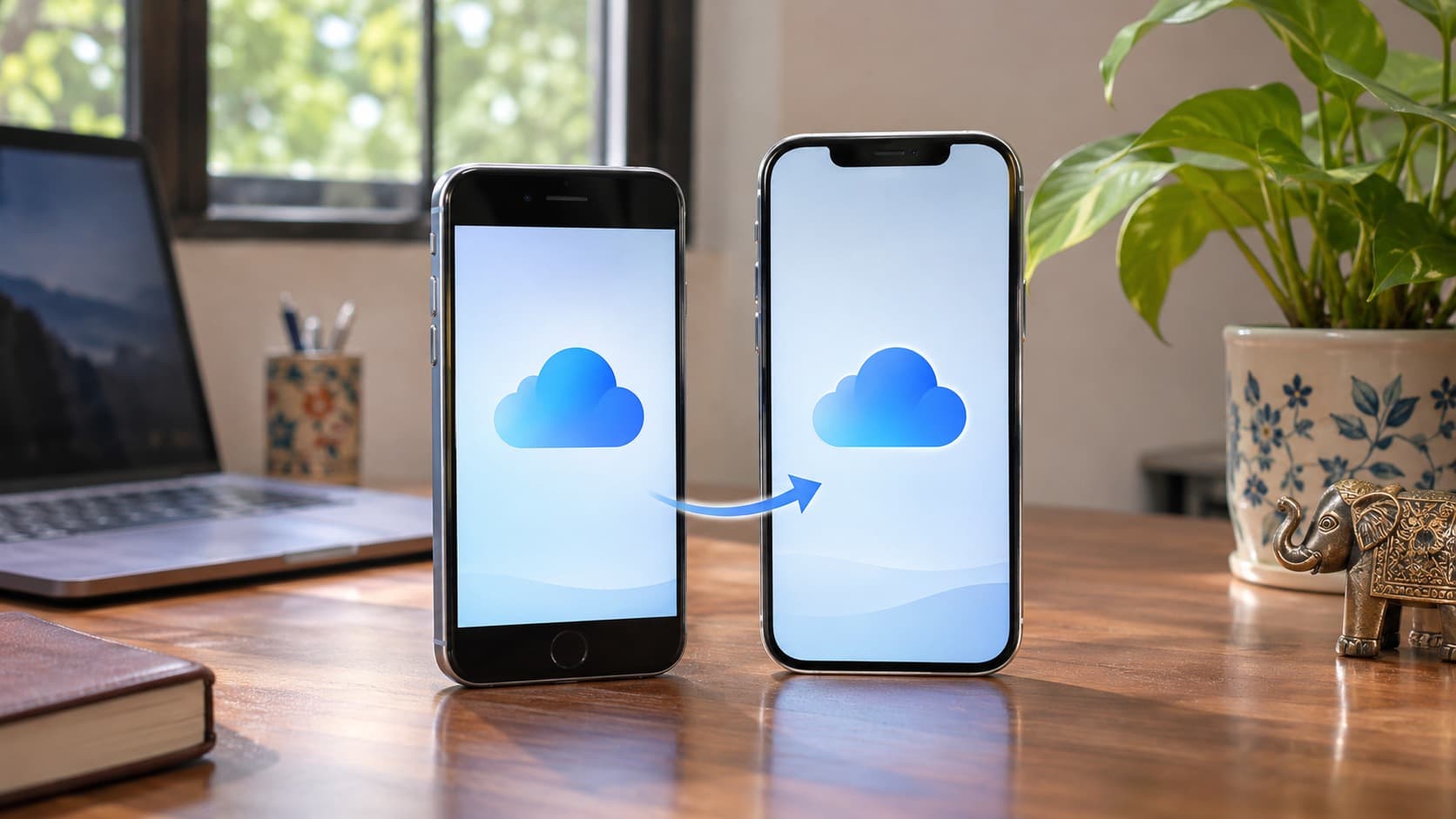
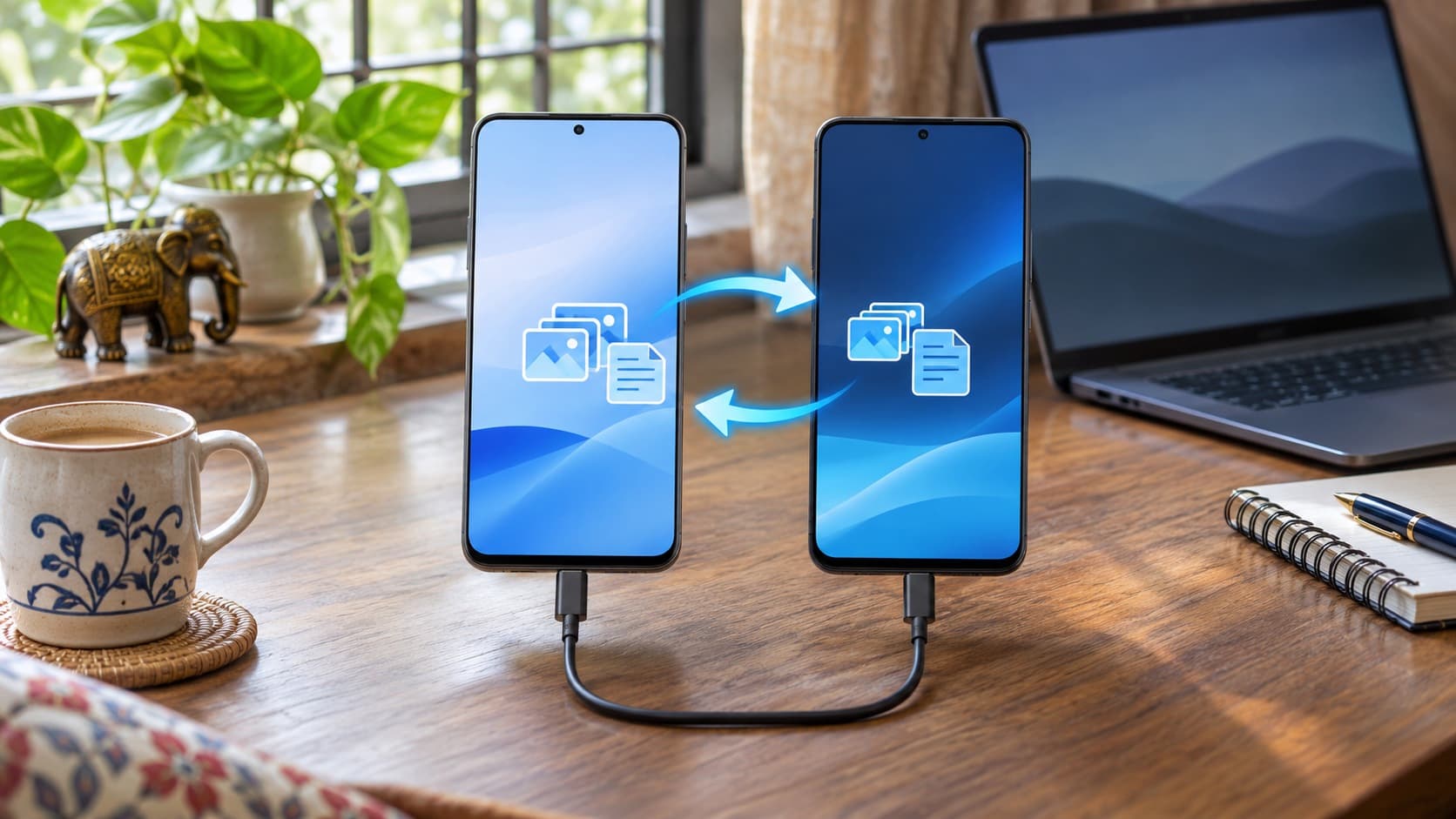
Samsung Smart Switch can transfer many contacts, messages, photos, documents and supported settings to a new Galaxy, but it does not guarantee that every app's private data or account access moves with them. Before selling your old phone, review the selected content, wait for completion and check the important information and services on the destination rather than treating an installed app as proof that its data transferred.
Already planning the sale? Check your Galaxy S24 Ultra sell quote while you prepare the move, then arrange the final handover around verified access to what you need on the replacement.
What Smart Switch does, and why the selected route matters
Samsung describes Smart Switch as a tool for transferring information to a new Galaxy and for backing up and restoring supported content. Its India guide covers wireless transfer, a USB-cable connection and a computer route. These are useful choices, but they do not make the source device, software versions or selected content irrelevant.
The supported list changes with the devices involved. Samsung's content guide says some items transfer only between Galaxy devices, and its India transfer guide warns that the manufacturer and operating-system version can restrict certain items. Read the list presented for your own connection. A category available in one example should not be assumed to apply to every possible combination.
Keep the destination clear as well. Samsung's content guide describes transferring from Android or iOS to Galaxy devices. Do not treat the name Smart Switch as a promise that the same route will move every item from a Galaxy to any other brand. If your destination is different, use the supported instructions for that move before committing to a handover.
This guide focuses on verifying an ordinary transfer before selling a Samsung phone in India. It uses Samsung's current product page and support documentation for technical details. The planning suggestions help you organise the move; they do not certify that a particular phone, backup or app contains every item you personally need without further checks.
Compare the main transfer and backup routes
Choose a route you can complete and verify with the equipment you actually have. A direct transfer and a computer backup serve related purposes but involve different steps. The table below helps you identify the milestone you should check before considering the old device ready to leave you.
| Route | What you use | Important check | Before selling |
|---|---|---|---|
| Wireless phone-to-phone transfer | The old device and receiving Galaxy using the supported connection flow | Confirm the source, selected categories and completion report | Open important information and check account access on the new phone |
| USB-cable transfer | A suitable cable and any connector required for the devices | Allow the connection and keep the cable connected during transfer | Verify the actual destination content, not just the cable connection |
| Computer backup and restore | Smart Switch on a compatible computer and the supported device connection | Complete the backup, then select and complete the restore | Know which backup was used and inspect the restored result |
| Synced-account access | The account responsible for the information | Sign in through the supported service process | Check the information appears and is usable rather than assuming it was copied locally |
You can explore ReUz's Samsung selling options while choosing your route. Keep a quote and a transfer checklist as separate records: knowing the handset's selling value does not establish that your information is ready for erasure.
Start with an inventory of information you actually need
Before opening the transfer screen, make a short list of the information you would miss if the old phone were unavailable tomorrow. Think in terms of useful tasks and content: the contacts you call, messages you need, photographs you want to retain, documents you refer to and accounts you use regularly. That list gives you something concrete to check afterwards.
Separate local files from information associated with an account or an app. Samsung's content guide explicitly distinguishes synced-account data from content copied by Smart Switch. If you do not know where an important item lives, identify the relevant app or account while you still have access to it. That is easier than investigating a missing item after you have erased the source handset.
Do not treat the transfer-selection screen as your only inventory. It tells you what the supported connection can offer, not necessarily every item important to your life. Compare its categories with your own list and note anything that needs a separate service-specific route. You can then ask the appropriate provider about a gap instead of assuming an unselected category must be covered elsewhere.
Keep the list practical rather than exhaustive for its own sake. A few meaningful checks are more useful than hundreds of unchecked names. For a work document, for example, confirm you can open the right file on the destination. For an account-based calendar, confirm that the relevant events appear through the correct account. Choose evidence that matches the information you are trying to retain.
Check source, destination and software before connecting
Identify which handset is sending data and which Galaxy is receiving it. Samsung's India instructions use Send data on the old phone and Receive data on the new one, followed by the appropriate source-device choice. The current product page also presents connection flows that can use a QR code or cable. Follow the flow shown for your software and device combination.
Menus and screenshots can vary. Samsung's India guide points to Settings, Accounts and backup and Bring data from old device, while other screens may show Smart Switch directly. Use the equivalent supported option on your phone rather than assuming a missing label means the app cannot work. Check the actual device instructions if you cannot identify the right route.
Make sure the devices are sufficiently charged. Samsung warns that transferring consumes battery and can be interrupted if power is low. Set aside a period when you can keep both devices available, read permissions and respond to prompts. This article does not give a universal transfer duration because the fetched sources do not establish one for your content and equipment.
Prepare the physical setup as well. For a cable transfer, use the connection appropriate to the two devices and allow a stable place for them to rest. For a wireless route, keep them near each other as Samsung instructs. A transfer is easier to monitor when you are not trying to move the phones around or pack one for pickup at the same time.
Understand what the transferable categories mean
Samsung's India transfer guide lists contacts, schedules, messages, photographs, videos, music and documents among possible Android-source content. It identifies additional items, including some settings and app data, as Galaxy-only in that list. These are supported categories, not a promise that every file, account or app state appears unchanged in every destination.
Read the selection offered after the devices connect. If you can inspect categories or individual items, choose what you actually need. Samsung's current product page describes selecting data before transfer and also selecting categories for a computer backup. A default selection is a starting point, not a reason to ignore a category you know contains important information.
Look for restrictions attached to the content type. Samsung's guides exclude DRM-protected media from ordinary transferable content and describe limits tied to device or software differences. If a purchased or protected item is important to you, check its service's supported access route rather than assuming that copying a media category recreates every entitlement or offline download.
Be equally careful with settings. A familiar wallpaper or home layout may make the destination look like the old phone, but appearance is only one part of the move. A correct-looking screen does not prove that a private document, app history or essential account is ready. Verify meaningful content and tasks separately from cosmetic similarity.
Why some account information appears after sign-in
Samsung's content guide says data from synced accounts is not transferred by Smart Switch but appears on the new device once you log into the account. This matters for information such as contacts or calendar items associated with external accounts. If an item is absent before sign-in, establish which account supplies it before declaring the phone-to-phone transfer unsuccessful.
The reverse assumption is also risky: do not decide that everything must exist in the account without checking. Sign in through the supported route, allow the service to operate as instructed and inspect the information you need. Account availability and a local transfer are different checks, even when both contribute to the final experience on your new handset.
An installed app is not proof that its private data moved
Samsung's product-page qualifications say some personal app data and content protected by a third-party provider's policy cannot be transferred. Its content guide also excludes data saved in private storage from ordinary backup. Treat those statements as a reason to check important apps individually instead of relying on the presence of their icons.
After the general transfer, open the apps that matter to your routine and follow their supported sign-in or restoration instructions. Check whether the information you expected is available. If an app offers its own transfer or backup process, read the current instructions for the source and destination involved. Do not infer a universal procedure from what worked for an unrelated app.
This is particularly important for conversations, credentials and services that control access to something valuable. The general Smart Switch selection does not establish the result for every provider's protected data. Record any app-specific question before handover and resolve it with that provider's current guidance while the old phone remains available.
For WhatsApp, do not treat moving the app itself as confirmation that your chats and media have moved. The appropriate supported migration depends on the source, destination and setup state. This guide does not prescribe an unverified universal WhatsApp route or promise that a particular cloud backup restores across every platform. Check the current instructions for the exact move and verify the conversations you need.
Keep protected folders as a separate checkpoint
If you use protected storage, include it explicitly in your inventory. Smart Switch's broad content lists should not replace the instructions for that feature and the route you choose. ReUz's Secure Folder transfer guide addresses that specific area. Keep its checks separate from the ordinary photographs and documents you can already see outside the protected area.
The practical distinction is simple: identify the source, use the supported route and verify the destination. Do not assume that a completed general transfer proves the state of a protected area you have not opened. Equally, do not duplicate or expose private information through an improvised route merely because the normal category list is unclear. Ask for the relevant support guidance first.
Complete a wireless transfer without skipping the selection
Samsung's India support guide says to have Smart Switch installed on both phones, place them close together and choose the receiving and sending roles. Select the appropriate source and wireless option, allow the connection on the old phone and choose the data to transfer. Current screens may present a different supported connection flow, so follow the prompts for your devices.
Review permissions rather than approving a connection to an unidentified handset. You should know which device is sending, which is receiving and what you selected. Samsung's usage guidance explains that permissions relate to access needed for backup and restoration. Keep the process within the phones and supported app flow rather than sharing unrelated private account credentials with a buyer.
Once transfer begins, keep both phones available and follow any instructions shown. If you see an interruption or an incomplete category, record what the app reports. A process that has started is not the same as one that has completed, and a completed category does not necessarily establish the result for every other category in your list.
At the end, inspect the transfer report or completed-data list available in your flow. Samsung's current product page points to the notification panel or Smart Switch app for completed transfer information. Use that record to guide your destination checks. Do not erase the source just because the app has returned you to a familiar screen.
Use a cable transfer with the right expectations
Samsung's India guide describes connecting the old and new phones with a USB cable and using a connector where required. Open Smart Switch when prompted, set the receiving role, allow access on the old phone and select the items to transfer. The exact equipment depends on the devices, so confirm the connection rather than assuming any cable on the desk is appropriate.
Its instructions explicitly say not to disconnect the USB cable while files are transferring. Arrange the devices so the connection can remain undisturbed. If you need to stop or deal with an error, follow the supported app instructions rather than pulling the cable in the middle of an active process to see whether the result changes.
A cable connection is a transfer method, not a guarantee that restricted content becomes transferable. The same questions about the supported device pair, selected data and provider policies remain relevant. If an item is outside the offered categories or requires its own service route, changing from wireless to cable does not by itself establish that the limitation has disappeared.
After completion, inspect the receiving phone in the same way you would after a wireless transfer. Open representative documents and photographs, check the relevant contact and message categories, and separately verify account-based services. The evidence that matters is what you can use on the destination, not simply that two phones were connected successfully.
Know the difference between a computer backup and a restore
Samsung's India guide says Smart Switch can back up phone data to a computer and import backed-up data to a phone. Its current product page describes connecting the previous device, launching Smart Switch on the computer, choosing Backup and selecting the content. Wait for the process to finish before treating that copy as a completed backup.
Restoration is a separate operation. The product page then describes connecting the new Galaxy, choosing Restore, selecting the data and completing that process. A backup on your computer does not mean the replacement has already received it. Keep those milestones separate in your notes so you know which step remains outstanding.
Check which copy and categories you selected for restoration, especially if the computer contains more than one device backup. A familiar device name is not enough to establish that the copy reflects the information you intended to retain. Use the details presented in the app and resolve uncertainty before you rely on it as your only retained route.
Keep the computer copy under your control and understand how you would use it again. If you share a computer, consider who can access the information and use the supported protection options appropriate to your setup. Do not put private account credentials into a public handover note merely to make the backup easier to identify later.
If you intend to sell before receiving the replacement
A completed supported backup can be part of your planning, but selling first changes what you can verify. You cannot inspect the final destination result on a phone you do not yet have. Consider retaining the old device until the move is complete, or get clear support guidance for the backup-and-restore plan before giving up the source.
Compare the financial convenience of an earlier sale with the uncertainty of an untested restoration. This guide does not certify that any unseen backup will recreate every app state or account. Keep the uncertainty visible and make a deliberate decision rather than turning a scheduled pickup into a reason to erase the phone before you understand your retention plan.
Verify the destination by task, not just by file count
A useful destination review checks the information you listed at the beginning. Open a meaningful sample of photographs and documents, look for contacts and messages you need, and confirm account-based information through the appropriate sign-in. A total count can be useful context, but it does not answer whether the particular item you rely on is present and usable.
For each important task, ask what would demonstrate readiness. If you refer to a work document, open the expected version. If you depend on an account, confirm access using that service's supported process. If you need an app's history, check the history rather than the icon. These are practical verification suggestions, not a claim that every service transfers through Smart Switch.
Keep mobile connectivity as a separate checkpoint. A data transfer does not establish that your SIM or eSIM service has moved and works on the replacement. Follow the network provider's current process and check the communication you depend on before erasing the old phone. Do not infer that phone service is active from the presence of contacts or messages.
Use similar care with banking, UPI and account-verification services. Check their own instructions for a device change and make sure the tasks you require are available. This article does not invent a common reactivation period or guarantee identical behaviour across providers. The aim is to identify and complete each relevant setup while you still control the old device.
If something is missing, investigate the category before repeating everything
When an item is absent, first identify whether it should have been selected for direct transfer, supplied by a synced account or handled by an app-specific route. Samsung's content exclusions give you a useful starting point. Repeating the entire transfer without understanding which route owns the missing item may not answer the actual question.
Review the completion information and any error shown. Note the source and destination, connection method and category involved. If you ask Samsung for help, those details are more useful than a general statement that nothing transferred. If the missing information belongs to another provider's protected app data, use that provider's supported migration guidance as well.
Keep the source unchanged while investigating where practical. Do not manually delete files because you think they are safely elsewhere until you have established that retention. Avoid clearing an app's data or resetting a handset as an improvised response to an incomplete transfer. Clarify the consequence of any proposed troubleshooting action before accepting it.
If the sale appointment is close, explain that the device is not yet ready for handover and revise the timing. A commercial deadline does not make an uncertain transfer complete. You can still compare quotes and replacement costs, but final erasure should follow a retention plan you understand rather than an assumption that you can recover everything later.
Smart Switch does not erase the source for a sale
Samsung's Smart Switch usage guidance says the existing data remains on the previous device after a transfer. Copying information and removing it from a handset are separate actions. A successful move therefore does not mean the old phone is empty, signed out or prepared for a new owner.
Complete the appropriate personal-data and account preparation after verifying the move. Read the current instructions for your model and software before choosing an erasure option. This guide does not replace a full sale-preparation process with a single transfer-complete screen, nor does it ask you to delete personal items one by one as an improvised handover method.
Keep repair privacy and change of ownership distinct. ReUz's Maintenance Mode versus factory-reset guide explains that separate decision. A mode used to limit access during service should not be assumed to finish the preparations required when you sell the handset.
Before collection, check that any physical cards or removable storage you intend to keep are accounted for, following your device's instructions. Review what is included in the sale and retain private backup information yourself. Resolve account prompts personally through the supported process rather than giving a buyer private credentials to finish your preparation.
Use the transfer plan to make a realistic upgrade budget
You can find your exact handset for an instant quote while keeping it available for the move. Enter the correct model, storage variant and condition, including known faults. A quote based on an assumed fully working phone is not a reliable budget for a unit whose actual condition differs.
Write the replacement's payable price in ₹ and subtract the confirmed amount you would receive for the old handset. Add only the costs that actually apply to your selected purchase and transfer arrangement. This guide provides no ReUz payout figure or invented accessory price; check your instant quote and current offers for the equipment you need.
Allow a practical transfer period in the collection schedule as well as the budget. If you need both handsets together, recognise that before promising the old one for pickup. A slight change in timing may be more useful than rushing into a sale that leaves an important account or document inaccessible.
Keep your quote, condition notes and readiness checklist together. The three answer different questions: what you may receive, what the handset is like and whether your information is ready to leave it. Reviewing them separately helps you make a clear decision without treating a good offer as evidence that a data move has finished.
A final review before confirming collection
Read the transfer report alongside your original inventory and mark each important category as checked, needing account sign-in or requiring another supported route. Keep unresolved items visible. This makes the remaining work specific: you might need to open a document, restore an app through its own process or confirm that a synced calendar is present. It is more useful than declaring the whole move complete because most photographs appeared.
Then review your handover arrangements. Confirm when the phone will be ready, which accessories are included and whether you have accurately described any faults. Keep the backup and private access information under your control. If you are helping a family member move their data, let them complete their own private account actions and confirm the information important to them. A transfer that looks complete to a helper may still leave an essential task unresolved for the person who uses the phone.
Thinking of selling your Galaxy S24 Ultra?
After checking the destination and completing personal preparation, you can sell your Samsung Galaxy S24 Ultra through ReUz. ReUz offers an instant quote in 60 seconds, free doorstep pickup, on-the-spot UPI payment and data wiped in front of you. Disclose the phone's actual condition and confirm the quote and inspection conditions before proceeding.
The site's up to 10% more price promise concerns comparable offers for the same model, storage variant and condition band. It is not a guaranteed uplift over every offer or a fixed payout for your phone. Compare like-for-like figures instead of assuming that the highest advertised amount applies to your unit.
If you have a different model, search ReUz for the Galaxy you actually own. Keep the source handset until the transfer and access checks relevant to your plan are complete. You can then hand it over with a clearer record of both your retained information and the commercial arrangements.
Frequently Asked Questions
Does Samsung Smart Switch transfer everything to a new Galaxy?
No, Smart Switch does not guarantee that every item transfers. Supported content depends on the source, destination, software and selected route, and Samsung identifies exclusions for protected media, some private app data and information supplied through synced accounts. Review the categories offered for your devices, then check important content and services on the new phone before erasing the old handset.
Does Smart Switch delete data from my old Samsung phone?
No, Samsung says the existing data remains on the previous device after the transfer. Moving supported information and preparing the source phone for sale are separate tasks. Verify what you retained, then complete the appropriate account and erasure instructions for your handset. Do not treat a completed transfer screen as proof that personal information has been removed from the device you intend to sell.
Why is an app present but its chats or private data are missing?
An app can be installed without all its private data being transferred, because Smart Switch support and third-party provider policies limit what can move. Samsung's guidance specifically warns about some personal app data and private storage. Check the app's current instructions for your exact source and destination, and verify the information inside it. The icon alone is not evidence that its history or account access is ready.
Should I use wireless, cable or a computer backup?
Use a supported route that fits your devices, equipment and ability to verify the result. Samsung documents wireless and cable transfers to a new Galaxy as well as computer backup and restoration. A cable should remain connected during an active transfer, and a computer backup still needs a separate restore before you can inspect the destination result. No route removes the need to review selected content and app-specific limitations.
When is my old Galaxy ready to sell after Smart Switch?
Your old Galaxy is ready for sale when you have verified the information and access required by your retention plan, completed the appropriate personal-data and account preparation, and confirmed the commercial handover details. Check connectivity and essential services separately from the transfer report. If an important item is missing or restoration remains untested, resolve that uncertainty before erasing or relinquishing the source handset.