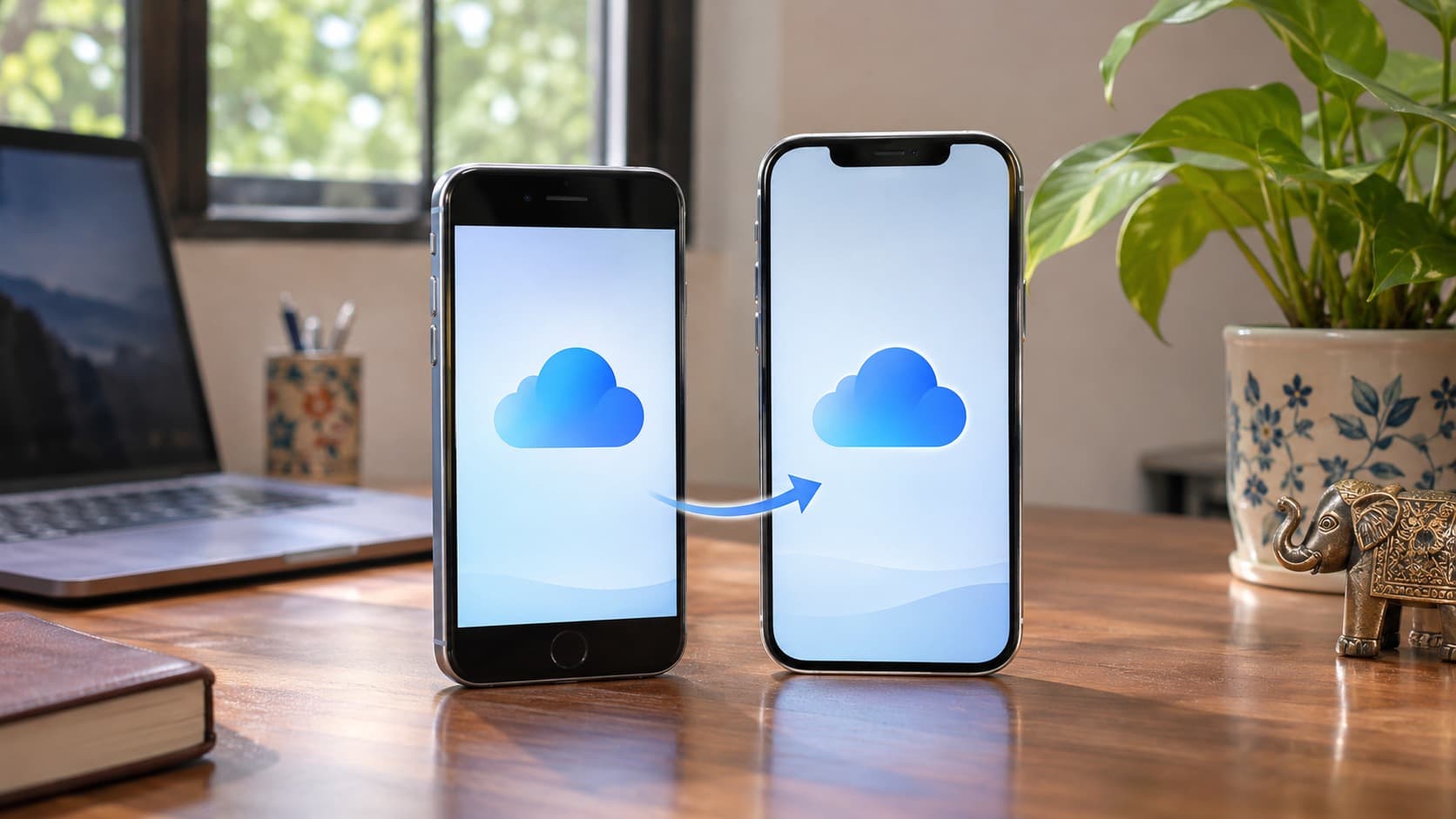
When you buy a new iPhone and do not have enough iCloud storage to back up your current device, Apple says you can qualify for free temporary iCloud storage to transfer your data. You normally have 21 days to restore that temporary backup, and Apple explicitly says not to erase your current phone until you have restored it to the new device.
Planning to sell after the move? Check your iPhone 15 sell quote while you prepare, but arrange the final handover around a completed, checked transfer rather than a backup you have only started.
What temporary iCloud storage is designed to do
Temporary iCloud storage is a migration option for an eligible new-device purchase. Apple's guidance describes it as extra storage for a temporary backup when your existing iCloud space is insufficient. It gives you a route to move information from the current device to the new one without treating a long-term storage subscription as the only possible starting point.
It is important to keep that purpose clear. The extra space is not described as a permanent increase to your everyday iCloud allowance. The temporary backup has a restoration deadline and is eventually deleted. If you want ongoing iCloud backup after the move, plan for a normal backup arrangement that fits the new device and your continuing storage needs.
Nor should you assume that any phone sale qualifies you for temporary storage. Apple's stated eligibility involves buying a new iPhone or iPad and lacking sufficient iCloud storage to back up the current device. If you are selling first, moving to another platform or simply trying to free space, do not build your plan around an offer whose conditions you have not met.
This guide focuses on that migration process and the decision about when your old phone is ready to leave you. Apple's fetched support pages provide the eligibility, backup and deadline details. The planning suggestions help you organise your own move in India; they do not establish that a particular backup contains every item you need without further checking.
Compare temporary storage, ordinary iCloud backup and a computer
Apple says you can back up using iCloud, a computer or both. The useful choice depends on what is available to you, the migration route you intend to use and how you will keep backups afterwards. Start with the comparison below, then read the specific instructions for your chosen method rather than assuming all three arrangements work identically.
| Option | Purpose and location | Important condition | What to plan next |
|---|---|---|---|
| Temporary iCloud backup | Extra cloud space for an eligible new-device transfer | Restore within the applicable temporary-storage deadline | Keep the old device until restoration, then establish ongoing backup |
| Ordinary iCloud backup | Backup stored in your regular iCloud arrangement | You need sufficient available iCloud storage | Check completed backup time and continuing storage requirements |
| Computer backup | Backup stored on your Mac or PC | Available computer space and the chosen backup settings matter | Understand encryption and restore from the computer when needed |
| Both cloud and computer | Separate backup methods available for your planning | Each method has its own contents and exclusions | Know which copy you will use and verify the restored information |
If you are comparing selling options during the move, explore ReUz's Apple selling pages without rushing the data handover. A current quote can help your budget while your old phone remains available to complete and check the transfer.
Check eligibility before depending on free extra space
Apple lists three important preparations for temporary storage: a qualifying new-device purchase with insufficient iCloud backup space, current software on the existing device and knowledge of the Apple Account credentials used for iCloud. Check those points before scheduling a pickup. An assumed entitlement is a poor basis for a plan that ends with erasing your only usable copy of information.
Make sure you know the Apple Account email address or phone number and password you use. This is separate from remembering the old phone's unlock code. Apple's temporary-backup restore instructions require signing in with your Apple Account. Resolve uncertainty about account access through the appropriate official process while you still control the current device.
Check for the supported software update on the existing handset, following the information shown on it. Apple's page says to update to the latest version. Allow time for the preparation rather than expecting it to be an invisible step at the moment of collection. This article does not promise an exact duration for updating, backing up or restoring your particular phone.
If your regular iCloud space is already sufficient, Apple's guidance says the free-extra-storage message will not appear. That absence does not automatically mean the migration feature is broken. Check whether you can make an ordinary iCloud backup instead, and follow the instructions appropriate to the storage arrangement you actually have.
Do not confuse phone storage with iCloud backup space
The storage inside your handset and the iCloud space used for backup are different parts of your plan. Temporary iCloud storage addresses the stated cloud-backup shortage for an eligible transfer. It does not change the physical storage capacity of either handset or establish how much space your replacement needs for the way you use it.
Choose the replacement capacity based on your own information and needs, then decide how you will transfer and back up. Buying a phone and creating a temporary backup are related steps, but they answer different questions. Avoid treating the temporary offer as a reason to ignore the amount of information you expect to keep using on the destination device.
Create the temporary backup using Apple's preparation flow
On the current device, Apple's instructions begin in Settings, General, then Transfer or Reset. Under Prepare for New Device, choose Get Started. Use the wording available on your handset and read the prompts. You are entering the preparation route for a new-device transfer, rather than immediately choosing the option that erases the phone.
If the screen says iCloud Backup is turned off, Apple's guide says to choose Turn On Backup to Transfer. If you lack enough iCloud storage and qualify for the offer, you should see the message about free extra storage and can choose Continue. If that message is absent, revisit Apple's explanation about having enough ordinary iCloud space before assuming an error.
Wait for the backup to complete. Starting the process, seeing a progress indicator or reaching a screen that mentions transfer preparation is not the same as a completed backup. Keep the phone available and follow any instruction shown during the process. If an error appears, record it and resolve it before proceeding to a destructive step.
For ordinary iCloud backup, Apple's separate guide directs you to connect to Wi-Fi, open Settings, your name, iCloud, then iCloud Backup and Back Up Now. It says to stay connected to Wi-Fi until completion and identifies the last backup date and time beneath Back Up Now. Use the completion information relevant to the route you followed rather than relying on memory.
Give the transfer a practical place in your schedule
Choose a period when you can leave the handset available for the process and respond to prompts. If the phone is essential to your work or household communication, avoid making the final sale appointment the first opportunity you have to investigate backup settings. A little scheduling flexibility lets you address an error without a buyer waiting at the door.
Keep your own note of the route used, the backup you intend to restore and the relevant deadline. Do not write account passwords into a shared handover note or send them to a buyer. The operational details help you organise the move; private credentials remain part of your own access to the account and should be handled through the appropriate secure process.
Understand the 21-day restoration window
Apple says you have 21 days to restore the temporary backup to the new device before temporary storage expires and the backup is permanently deleted. Treat that as a deadline for completing the restore, not simply ordering the replacement or beginning setup. Record the time information shown in your own preparation flow and plan to act comfortably within it.
Apple's instruction not to erase the current device until you restore the temporary backup is especially important if you intend to sell the old phone. A completed cloud backup does not remove the risk created by handing over the device before the new one has been restored. Keep the old handset available until the migration step Apple requires is complete.
If delivery is delayed, check the deadline before it becomes urgent. Apple's guidance says that if the new device does not arrive within 21 days, you can get an additional 21 days by opening Settings on the current device and choosing Keep My Backup Longer. This is a specific extension route, not an instruction to ignore the original deadline.
For additional time beyond the available arrangement, Apple directs you to Apple Support. Ask before the temporary backup is deleted rather than assuming support can recreate an expired copy. Keep track of the extension actually shown or confirmed for your case. This article cannot grant an extension or replace the status information in your account.
Plan carefully if you want to sell before the replacement arrives
Selling first may appear to reduce the cash you need for the new phone, but it changes the practical sequence. Apple's temporary-backup guidance tells you to retain the old device until restoration. If your plan depends on giving it away earlier, reconsider the timing and arrange another supported transfer or backup plan before committing to the sale.
Do not treat a promise to buy a new phone later as proof that the temporary migration route will remain available indefinitely. Eligibility, restoration and expiry all belong in the plan. Compare the financial convenience of an early handover with the value of keeping control of the device while account access, backup completion and the destination setup remain unresolved.
Restore the new iPhone from the intended backup
Apple's temporary-storage instructions say to turn on the new device and follow setup. At Apps and Data, choose Restore from iCloud Backup, sign in with the Apple Account and choose the most recent iCloud backup. Follow the on-screen process and wait for restoration to complete. Read backup information carefully so you choose the intended copy.
A familiar name or a setup screen is not enough by itself to establish that you selected the right backup. Consider the device and timing information shown, particularly if your account contains backups from more than one device. If you are uncertain, stop and check before continuing rather than assuming any available entry represents your current phone.
Keep the old phone until the restoration step is complete, as Apple instructs. Then check the information and tasks important to you on the replacement. This practical review does not change Apple's definition of a backup, but it helps you discover an access or transfer question while the original handset is still available.
Work from a short list of what matters: information you refer to regularly, communication you need and apps or accounts on which your routine depends. Do not assume that seeing a home screen means every service is ready. If something appears missing, establish whether it belongs in the backup, is synced separately or needs its own sign-in or supported setup.
A backup and synchronised information are not identical
Apple's backup-method comparison says iCloud backups contain device information and settings that are not already synced to iCloud. That distinction is central to checking a move. Information managed through a separate synchronisation arrangement is not necessarily duplicated inside the device backup simply because you regard it as part of what is on your phone.
Apple lists exclusions such as photos when iCloud Photos is enabled and messages when they are synced with iCloud. It also lists information held in other cloud services, Apple Mail data, Apple Pay settings and biometric settings among the items outside an iCloud device backup. Use those categories to ask the right question when reviewing the new phone.
For example, do not conclude that a device backup failed merely because a service needs its own supported sign-in or synchronisation. Equally, do not assume that information is safely available elsewhere without checking the relevant service. Identify which route is responsible for the item and follow its instructions rather than repeatedly making the same backup without understanding the gap.
The practical aim is to know where your information is expected to come from. Some items belong to the backup, others to a synced account, and others may require separate preparation. Your important-task list helps you check the result without pretending that any one backup method is a universal copy of every setting, credential and external service.
Do not manually delete synced items as a sale-cleaning method
Apple's selling guide warns that manually deleting contacts, calendars, reminders, documents and photos while signed into iCloud can remove them from iCloud servers and connected devices. Clearing visible items one by one is therefore not a substitute for the proper sign-out and erasure process. Preserve what you need and use the supported handover instructions.
That warning matters after a successful move as well. You may still see familiar information on the old phone and feel tempted to clean it up manually before pickup. Do not assume that deleting an item there affects only that handset. Follow Apple's current sale-preparation route once the transfer is complete instead of improvising a selective deletion routine.
When a computer backup is worth considering
Apple says you can use iCloud, a computer or both, and that a computer backup is stored on a Mac or PC with capacity determined by its available space. This can be a useful alternative to investigate if your migration plan does not fit the temporary-storage arrangement. Follow the supported instructions for your computer and chosen backup method.
Understand the encryption setting before relying on the computer copy. Apple's comparison says iCloud backups are always encrypted, while computer backup encryption is optional and off by default. It also says Activity, Health and Keychain data require an encrypted computer backup. Do not assume an unencrypted computer backup has the same contents as an encrypted one.
A computer backup also has exclusions. Apple's list includes content already synced to iCloud, certain content synced from the computer, Apple Pay settings and biometric settings. Read the relevant list for your method rather than treating “almost all data” as an assurance that every item you care about is included without exception.
If you choose both methods, know which backup you intend to restore and why. Two copies are useful only when you understand their state and can follow the restoration route. Keep track of completion and access requirements for each, and verify the result on the destination before erasing the old device as part of a sale.
What happens after you restore the temporary backup?
Apple says the temporary backup remains available for seven days after restoration and is then permanently deleted. Do not confuse that post-restore period with permanent cloud storage. Once the move is complete, decide how you will keep the new device backed up going forward rather than assuming the temporary copy will remain your long-term fallback.
If you want ordinary automatic iCloud backups, Apple's guide says to enable Back Up This Device, connect to power and Wi-Fi and keep the screen locked. You also need sufficient iCloud storage for the backup. Check the arrangement on the new phone rather than assuming the temporary migration step automatically answers your ongoing backup requirements.
Apple's temporary-storage page points to iCloud+ for continued cloud backup where additional storage is needed. This article does not quote a subscription price because no current plan-price page was fetched for this guide. Check the actual offer shown to you and compare it with your needs instead of making a purchase from a remembered monthly figure.
Alternatively, maintain a supported computer-backup routine if that suits you. The useful outcome is a plan you can keep following, not merely a one-time successful move. Record where the backup is stored and check its completion as appropriate, particularly before future changes that could remove access to information you value.
Keep connectivity and account access separate from the backup
A device backup does not by itself establish that your mobile service is ready on the replacement. Plan your SIM or eSIM move through the relevant supported route and check that the communication you depend on works. Do not schedule the old handset's final erasure solely because its cloud backup has finished uploading.
If you use eSIM, ReUz's India eSIM transfer guide for Jio and Airtel covers that separate handover concern. Keep carrier-specific steps distinct from restoring a device backup. A completed restore and an active mobile connection are different checks, even when both are needed before you can comfortably give up the old phone.
Account access deserves a similar review. Confirm that you can use the accounts and services important to your routine on the replacement, following their own instructions. Do not share private passwords or verification codes with a buyer to make a handover faster. Resolve access questions through the relevant service while you still have time and control of the old device.
If your phone number will change, Apple's selling guide says to add additional trusted phone numbers so you do not lose account access. Consider that instruction early in the plan. A change of device, account access and mobile number can interact in your daily routine, but they should not be treated as one invisible automatic result of a backup.
Prepare the old phone for sale only after the move
Apple's selling guide places creating a backup and transferring information before removing personal information from the old device. Follow its current instructions for your software version. It includes matters such as unpairing a paired Apple Watch, signing out and using Erase All Content and Settings, with the relevant prompts and account requirements.
Read the options carefully. Apple's current guide distinguishes signing out without erasing from erasing the device on newer software. Do not assume every Sign Out choice completes a sale-ready wipe. Use the full supported handover process and verify what the selected action does before confirming it, particularly when your intention is to transfer ownership rather than temporarily change an account setting.
Apple says Erase All Content and Settings removes the device's content while not deleting your content from iCloud. This is different from manually removing synced photos or contacts. That distinction is one reason to use the proper process after restoration, rather than guessing how to make the old handset look empty.
Apple also addresses removing the old device from trusted devices and choosing the appropriate eSIM-erasure option when selling an eSIM device. Follow the instructions that apply to your situation after the mobile-service move is ready. If a security prompt or delay needs attention, resolve it before the pickup appointment rather than assuming the buyer can complete your private account preparation.
Fit backup preparation into your upgrade budget
Get a current quote for the old phone and price the replacement you actually intend to buy. You can find your exact handset for an instant quote while retaining it for transfer checks. Use the correct model, storage variant and condition so your budget rests on a relevant offer.
Write the new phone's payable price in ₹, subtract the confirmed selling amount and include any costs that actually apply to your purchase or ongoing backup plan. This guide gives no ReUz payout or iCloud subscription amount. Check your instant quote and current offers rather than assuming a maximum advertised figure or remembered price applies to you.
Allow practical room for the transfer in that budget and schedule. A slightly different collection date may be more useful than forcing a sale before you can restore and check the new phone. Compare arrangements with the information you actually have, and avoid promising a ready-to-handover device while account access or backup completion remains unresolved.
A practical checkpoint before confirming pickup
Review the move in stages rather than relying on one reassuring screen. First, confirm which backup method you used and that it completed. Second, identify the backup selected during the new phone's setup. Third, establish that restoration finished. Finally, check the information and ordinary tasks that matter to you. This sequence gives you a concrete reason to consider the handset ready for sale, rather than treating a completed upload as the end of every preparation step.
If something is missing, write down the category and the route you expected it to use. For example, ask whether it should come from the device backup or from a separately synced account. Use Apple's backup-method list to narrow that question, then follow the relevant service's instructions. Avoid deleting information from the old phone to make the screens look alike. Similar appearance is not proof that the information has been safely preserved in the right place.
If delivery or setup is delayed, revisit both the temporary-backup deadline and your collection arrangement. Keep the old handset until the restoration requirement is met, and use the extension route if your circumstances qualify. Tell the buyer when the phone will actually be ready rather than making an appointment you can meet only by skipping the transfer check. A clear revised schedule is easier to manage than an erased device and an unresolved question about your only backup.
Once those checks are complete, proceed with the supported account sign-out and erasure steps for a sale. Keep the distinction between your migration preparations and the buyer's condition inspection clear: a phone can be physically ready for inspection while your personal transfer still needs attention. Complete your private account actions yourself, retain the information you need and confirm the commercial arrangements using the correct model and disclosed condition.
Thinking of selling your iPhone 15?
After restoring and checking the replacement, you can sell your iPhone 15 through ReUz with an accurate condition description. ReUz offers an instant quote in 60 seconds, free doorstep pickup, on-the-spot UPI payment and data wiped in front of you. Complete the personal preparation needed before the final handover.
The site's up to 10% more price promise concerns comparable offers for the same model, storage variant and condition band. It is not a guaranteed uplift over every offer or a fixed payout for your device. Check the quote and inspection conditions, and compare like-for-like information when weighing selling against exchange.
If you own a different handset, search ReUz for the model you are preparing to sell. Keep your migration checklist, deadline and collection arrangements together. You can then move on from the old phone with a completed transfer and a clearer plan for backing up the replacement.
Frequently Asked Questions
Who qualifies for free temporary iCloud storage?
Apple says you qualify for temporary iCloud storage when you buy a new iPhone or iPad and lack enough iCloud space to back up the current device. Update the current device and make sure you know the Apple Account credentials used for iCloud. Follow Prepare for New Device in settings. If the extra-storage message does not appear, Apple's guidance says you may already have enough ordinary iCloud space for the backup.
How long do I have to restore a temporary iCloud backup?
You normally have 21 days to restore the temporary backup before it expires and is permanently deleted. Apple describes an additional 21-day option through Keep My Backup Longer if the new device does not arrive within the original period, and directs further extension requests to Apple Support. Check the deadline and extension actually available in your case, and act before deletion rather than assuming temporary storage lasts indefinitely.
Can I erase my old iPhone as soon as the temporary backup finishes?
No, Apple's temporary-storage guidance says not to erase the current device until you restore the temporary backup to the new one. Keep the old phone available through restoration and check the information and services important to you before completing sale preparation. A completed upload is not the same milestone as a completed restore, and mobile-service transfer or account access can require separate attention.
Does an iCloud backup include everything visible on my phone?
No, an iCloud device backup does not include every category of information as a separate copy. Apple says it contains information and settings not already synced to iCloud, with exclusions including iCloud Photos content when that feature is enabled, certain synced messages, biometric settings and Apple Pay settings. Check the relevant backup and synchronisation routes, then verify important information on the replacement instead of assuming one backup covers every service.
What happens to temporary storage after I restore the new iPhone?
Apple says the temporary backup remains available for seven days after restoration and is then permanently deleted. Set up an ongoing backup arrangement for the replacement rather than relying on that temporary copy. You can use ordinary iCloud backup with sufficient storage, a supported computer backup or both. Check current storage options and the contents of your chosen method before deciding what meets your continuing needs.