If your Samsung fingerprint is not working, check your finger placement, screen protector and whether the phone is wirelessly charging before assuming the sensor needs repair. Samsung recommends re-registering fingerprints when appropriate, checking software and using Samsung Members diagnostics; keep your preset PIN, pattern or password available while you investigate.
Already considering a change of handset? Check your Galaxy S24 Ultra sell quote with an accurate description of the fingerprint issue, then compare your options after completing the relevant checks.
First identify what “fingerprint not working” means
A fingerprint problem can mean that a registered finger is rejected, that a new fingerprint will not register, or that the phone asks for another unlock method. Those observations are different. Start with the exact screen and message you see. Record whether the issue affects the normal lock screen, registration in settings or only a particular app.
Samsung's fingerprint-use guide says you need your PIN, password or pattern after restarting the device. A request for that credential at that point is therefore not proof of a failed sensor. Use the secure method you already set up and check what happens during ordinary fingerprint unlocking afterwards. If you cannot provide the required credential, use Samsung's appropriate account or lock-screen support guidance.
Separate fingerprint recognition from general touch input. If you can navigate and type normally but the sensor rejects your finger, describe that. If parts of the screen also fail to respond, record the touch problem separately. The same phone can have more than one symptom, but calling every problem “the screen is broken” makes a useful assessment harder.
This guide uses Samsung's official support instructions for user-level checks. It does not diagnose your individual handset remotely or establish a repair cost. The suggestions about evidence, budgeting and selling help you make a clearer decision in India. Follow the instructions and options actually available on your model, since menu names and sensor locations vary.
Match the symptom to the next useful check
Choose the row that most closely matches what you observe. Complete one relevant check, then repeat the same action. Changing the protector, software, registered fingers and several settings together may leave you uncertain about what helped. A short record of each change is more useful than repeatedly trying unrelated suggestions without knowing the outcome.
| What you observe | Useful first check | What to record | Next decision |
|---|---|---|---|
| PIN requested after a restart | Use your preset secure unlock credential | Whether fingerprint unlock works afterwards | Distinguish an expected credential request from failed recognition |
| Recognition worsened after fitting a protector | Check protector compatibility, condition and fingerprint registration | When the change began and whether registration completes | Assess the protector before assuming internal sensor damage |
| Only one finger is rejected | Check placement and finger condition; try another registered finger | Which registered fingers work | Consider careful re-registration where appropriate |
| Recognition fails on a wireless charger | Stop wireless charging and try again | Whether the result differs off the charger | Investigate the particular setup rather than generalising |
| Recognition remains unreliable after checks | Run Samsung Members Fingerprint recognition diagnostics | Result, symptoms and changes already tried | Ask Samsung for an assessment if the issue persists |
If you want to compare selling while you investigate, explore ReUz's Samsung selling options. Keep an intermittent or unresolved fingerprint complaint in your condition description. A quote based on the actual situation is more useful than a higher figure obtained by assuming the sensor is working normally.
Know where your phone's fingerprint sensor is
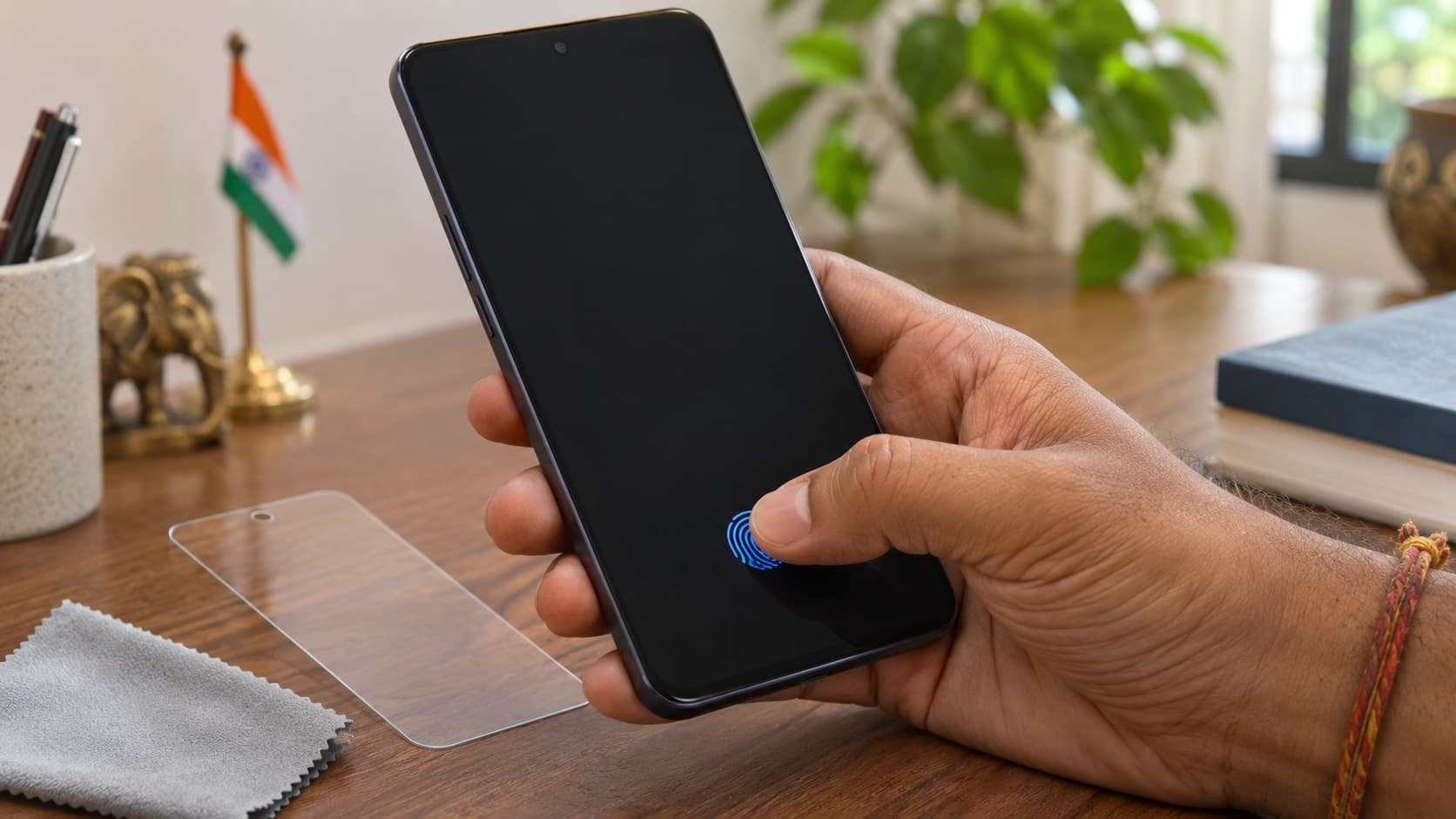
Samsung's fingerprint-use guide distinguishes sensors under the display from sensors on a side or power button and other locations. Check your exact device before following a diagram. The screen-protector explanation for an under-display sensor does not automatically apply in the same way to a phone whose reader is on its side button.
Use the handset's registration instructions to identify the area you should cover. If you are touching a familiar-looking point on the display because a previous phone used it, confirm that it is the correct place on your current handset. A positioning mistake is worth excluding before deleting registrations or arranging a service visit.
A case can also affect how comfortably you reach the intended area, even when you are not establishing any technical fault in the case itself. Compare your normal grip with the placement shown during registration. The practical aim is to let your finger contact the appropriate sensor area naturally rather than stretch into a position you cannot repeat during daily use.
Do not press harder and harder because you expect force to compensate for uncertainty. Follow the on-screen instructions and Samsung's placement guidance. If the phone or display is physically damaged, stop improvised testing and ask for an assessment. User-level recognition checks do not require opening the phone, manipulating internal parts or treating cracked glass as a normal test surface.
Check finger condition, placement and contact time
Samsung says fingerprint recognition can be affected when a finger is excessively dry, removed too quickly or placed incorrectly. Its guidance advises covering the sensor with the fingertip and allowing recognition to complete. Start with a clean, dry finger and sensor area. You are testing normal contact, not repeatedly tapping a small part of the sensor and expecting the same result.
If your finger is excessively dry, Samsung suggests a small amount of hand cream or firmer contact. Keep that advice in context: it is a finger-condition check, not an instruction to apply a product to the phone. Follow ordinary care for your skin and device, and avoid leaving residue on the sensor area while trying to improve contact.
Notice how you hold the handset during a failed attempt. If only the edge of your fingertip touches the sensor, adjust your placement and try the registered finger again. Samsung specifically notes that a mismatch between the shape or angle presented and the stored fingerprint can affect recognition. Careful placement is a useful check before deciding that the registration itself must be replaced.
Allow enough contact for the phone to finish the recognition attempt. Lifting your finger immediately can interrupt the opportunity to read it, according to Samsung. Observe the result shown on the screen and avoid turning the exercise into rapid repeated taps. A deliberate attempt gives you clearer information about whether placement or contact time changes the outcome.
Try another finger that you have already registered
If you already registered more than one finger, compare them under similar conditions. Samsung recommends registering multiple fingers so that another can be used if one becomes injured or is not recognised. If one works and another does not, record that distinction. It can guide registration checks without proving that the rest of the hardware is fault-free.
Use only your own authorised registrations and the device's supported process. You do not need to weaken the screen lock or share a credential to make a comparison. If a finger is injured or uncomfortable, avoid using it as the basis for repeated testing. The immediate priority is retaining access through the secure methods already configured on your phone.
Keep the conclusion proportionate. A successful attempt with another finger tells you that this attempt worked in these circumstances. It does not promise reliable recognition during every future use. Conversely, one rejection does not establish a damaged sensor. Look for a reproducible pattern before committing to a repair or describing a permanent fault to a buyer.
If the issue began after fitting a screen protector
Samsung's India guide says a protector's thickness, material, pattern and condition can affect under-display fingerprint recognition. It identifies thick or textured products and notes that compatibility with third-party products cannot be guaranteed. If recognition changed immediately after a protector was fitted, make that timing part of your investigation rather than skipping straight to an internal repair diagnosis.
Check whether the protector over the sensor area is scratched, dirty or damaged. Samsung recommends replacing a dirty or scratched protector and registering fingerprints again after replacement. Ask the seller or manufacturer about compatibility with your exact handset. A general claim that a protector fits the screen does not answer every question about fingerprint recognition performance.
Samsung's troubleshooting guidance includes removing a protector or replacing it with a thinner compatible one. Only attempt removal if it is straightforward and safe for the condition of your phone and protector. If glass is damaged or you are unsure, ask for assistance. The point of the comparison is to assess a removable accessory without creating a new problem.
Record what happens before and after the relevant change. Can you complete registration? Does normal unlocking improve? Keep the software and other conditions as consistent as practical. If you replace the protector and change several other things together, a better result will not tell you which change was important.
Do not assume that a touch-sensitivity option guarantees recognition with every protector. Samsung's troubleshooting page includes Touch sensitivity as an available check, but its protector warnings still matter. Use options that are actually present on your device, read their descriptions and continue to assess the actual recognition result rather than relying on a setting's name.
Re-register fingerprints using the current on-screen process
Samsung recommends deleting previously registered fingerprints and registering them again when a screen protector is applied. Before removing a registration, confirm that you know your preset PIN, pattern or password and can access the relevant settings. This avoids making a registration change while depending entirely on the biometric method you are investigating.
The current India instructions show a route through Settings, Lock screen and AOD, Screen lock and biometrics, then Fingerprints. Samsung also warns that menu names vary by model and software. Use the equivalent path on your phone and follow its prompts rather than assuming another model's screenshots must match exactly.
Choose the appropriate registration action and complete each prompt carefully. Cover the indicated sensor area and use the finger you intend to use for normal unlocking. Samsung's fingerprint-use page notes that the registration method changes on some software versions. Let the instructions on the handset guide the movement required instead of forcing a method copied from an older tutorial.
After registering, check that fingerprint unlocking is enabled if the phone offers that option. Then perform the ordinary task you were investigating. Successful registration is useful, but it is not the same observation as reliable unlocking in your usual grip. Record both whether setup completes and whether the earlier recognition complaint is reproduced afterwards.
Use additional accuracy options only where available
Samsung's US troubleshooting guide describes an Improve accuracy option for a registered fingerprint on supported menus. If it is present on your handset, follow its instructions with the same finger originally registered. Do not assume the feature must appear on every Galaxy phone or that its absence indicates a separate problem.
Similarly, registering another finger can provide a practical alternative, but it should not become a way to conceal an unresolved issue. If recognition still fails unexpectedly, keep that observation. Avoid repeatedly deleting and adding the same registrations without learning anything new; move to diagnostics or support when the relevant documented checks have not improved your actual experience.
Try off the wireless charger and outside altered screen modes
Samsung says fingerprint recognition can be less effective while the phone is wirelessly charging. Stop wireless charging and try again. Keep the same registered finger and ordinary unlock action so that the charger status is the main change. Note whether recognition improves off the charger rather than assuming that the difference proves a permanent fault in either device.
If the problem appears only in a particular charging arrangement, describe that arrangement to support. Include whether the phone works normally when held away from it. This is more useful than calling the sensor completely non-functional. Do not buy another phone solely to avoid a setup-specific symptom before you have checked the documented alternative.
Samsung also identifies One-handed mode and Smart View as possible contributors because they can alter the screen ratio and the way the fingerprint area is displayed. Exit those modes and repeat the check. Use the controls on your handset to return to its ordinary screen presentation before concluding that the sensor itself is not responding.
These are separate comparisons. If you stop charging, change a protector and exit a display mode together, an improved result will be harder to interpret. Work through the relevant circumstances one at a time where practical. Keep a simple note of what changed and what stayed unresolved so you can avoid repeating the same unsuccessful checks later.
Restart and check supported software updates
Samsung's troubleshooting guide says temporary system errors can affect the sensor and recommends restarting. Use the normal Restart option when the phone responds, following the controls appropriate to your model. Before doing so, make sure you can provide the preset secure unlock credential needed after a restart. Restarting is a routine check, not a way to bypass the phone's lock.
After restarting and unlocking with that credential, repeat your fingerprint test in normal use. Record whether the result changes temporarily or remains improved. If the complaint returns later, explain that sequence when seeking help. “Works immediately after restart, then becomes unreliable” is more informative than saying a restart either always works or never helps.
Samsung also recommends checking software updates through Settings and Software update, and updating relevant apps. Follow the supported process and the wording on your phone. This guide does not identify an unverified software build as a universal fingerprint fix or recommend installing an unofficial package advertised as repairing every recognition problem.
If the issue began after an update, record that timing and the software information visible on the device. The sequence can help support investigate, but timing alone does not establish that the update caused the problem. Avoid treating a report about another model or accessory as a confirmed diagnosis of your own phone.
Run Samsung Members Fingerprint recognition diagnostics
Samsung's India fingerprint guide recommends the Fingerprint recognition item in Phone diagnostics if the problem persists after the preceding checks. You need the Samsung Members app installed. Its diagnostics guidance also says to check that device software and relevant apps are current before testing, and notes that account verification is required for the diagnostics feature.
Open Samsung Members and use the Support or Diagnostics area available in your app version. Samsung's instructions show View tests or Phone diagnostics, with the option to test individual functions. Select Fingerprint recognition and follow the on-screen instructions. Menu paths can vary, so use the equivalent supported flow rather than assuming one screenshot is universal.
Save the result together with your real-use observations. A diagnostic result and an intermittent unlocking complaint answer different questions. If diagnostics complete successfully but your normal unlock attempts still fail, tell support both facts. If a test reports a problem, share that result without inventing a component diagnosis or a repair price.
Samsung Members also provides an error-report route. Follow the app's instructions if you choose to submit a report, including the requested system information. Make the description specific: the action, message, circumstances and checks already completed. Before sending screenshots, check that they show what is needed and do not unnecessarily include private notifications or unrelated account details.
Keep a secure alternative; do not rush into a factory reset
Samsung's India guide recommends a preset alternative screen lock, such as a PIN, pattern or password, when the fingerprint sensor malfunctions, rather than performing a factory reset as the immediate response. Use the secure method you already configured while investigating recognition. A working alternative can keep the phone usable without pretending the biometric complaint has been resolved.
Do not remove security just to make the phone appear easier to use during a test. The aim is to preserve authorised access while checking a convenience feature. If you have forgotten the required credential, use the appropriate official support process for that situation. Repeatedly changing fingerprint settings is not a substitute for resolving an access problem.
If someone recommends erasing the device, first clarify why that action is proposed and what you would need to preserve. This guide's user checks do not require an improvised reset. Keep account access and your important information in view before authorising a service action, especially if the phone supports everyday communication, payments and other essential tasks.
For a planned handover, distinguish repair preparation from sale preparation. ReUz's Maintenance Mode and factory-reset guide explains that separate decision. A temporary method used during service should not be assumed to complete the personal-data preparation needed when ownership changes.
When to ask Samsung for an assessment
If the issue persists after the relevant checks, use Samsung's support options and ask what assessment is appropriate. Physical damage or an unresolved recognition failure should not be converted into a confident remote diagnosis. Describe what the phone does, what still works and what changed before the issue began.
A useful service note includes whether registration completes, whether different registered fingers behave differently, the protector in use and whether stopping wireless charging changes the result. Add the diagnostics outcome and relevant restart or update history. You do not need a long narrative; a clear sequence of observations helps the provider understand the complaint you want addressed.
If the display is cracked or another part is damaged, disclose it before continuing accessory experiments. Samsung's troubleshooting page advises inspection for physical damage. Do not force a damaged protector off or keep pressing a damaged screen to reproduce a symptom. Ask the provider how to prepare the phone safely for the assessment.
Request a written proposal before authorising paid work. Ask what the recommended action is intended to address, the total payable amount in ₹ and whether any additional assessment or service charges apply. This article gives no fingerprint-sensor repair price because the fetched sources do not establish the work or charge applicable to your particular phone.
Ask how the proposed repair will be checked
Explain the ordinary action that fails, rather than asking only for a part to be replaced. If recognition is unreliable with a particular protector, ask whether that accessory should be brought for the assessment. If the problem is intermittent, say so. A proposed repair is easier to evaluate when it refers to your actual complaint and how the result will be checked.
Clarify data preparation and the time you may be without the handset. Keep the information and account access you need before handover, and ask questions if the proposed work is unclear. You can then compare a concrete service plan with keeping or selling the phone rather than making the decision from an assumed repair cost.
Compare keeping, repairing and selling in India
Keep the phone if a documented placement, protector or registration check resolves the issue and the handset still meets your needs. There is no need to upgrade solely because one finger was rejected on one occasion. Continue ordinary use and judge whether the result is dependable enough for the way you actually use the phone.
Repair may make sense when a service assessment identifies an unresolved issue and you want to keep the handset. Consider the written cost, the proposed work and the inconvenience involved alongside the rest of the phone's condition. Do not assume that any amount spent on repair will automatically be added to its future selling price.
Selling is worth comparing if you already want a replacement or the overall cost of keeping the current phone no longer suits you. Obtain a condition-accurate quote and price the replacement you actually want. A high advertised maximum for an ideal-condition handset is not automatically the offer for a unit with a disclosed fingerprint complaint.
For your own budget, write the replacement's payable price in ₹ and subtract the confirmed amount you would receive for the current phone. Add any costs that actually apply to the purchase. Compare that cash requirement with the written repair proposal and keeping the phone. Use real offers rather than a hypothetical payout presented as though it were available to you.
You can find your exact Galaxy handset for an instant quote while making that comparison. This guide gives no ReUz payout amount; check your instant quote and inspection conditions for the actual model, storage variant and condition before deciding.
Describe an intermittent fingerprint fault honestly
If registration completes but unlocking remains unreliable, say that. If the problem appears only with a protector or while wirelessly charging, describe the circumstances you observed. Do not call the sensor permanently broken without an assessment, and do not describe it as fault-free merely because it worked during a brief demonstration.
Separate working features from unresolved ones. You might be able to use the touchscreen and preset PIN normally while fingerprint recognition remains inconsistent. That is a clearer condition description than saying the whole phone cannot be used. Ask the buyer how to record the issue if a quote form does not have an option that matches your situation.
Keep model, storage and condition information consistent when comparing buyers or exchange counters. Otherwise, a difference between offers may reflect different assumptions rather than a better price for the same handset. Save the offer details and ask what can change after inspection before arranging pickup or committing to the replacement purchase.
Plan the data move independently of the fingerprint test. Check which accounts, communication tasks and information still depend on the current device, and complete the preparations you need while you control it. A working PIN does not establish that a phone is ready for sale, just as a fingerprint problem does not establish that your personal files are already preserved elsewhere.
Before arranging any handover, review the quote and your own notes together. Confirm which faults you reported, which accessories are included and which questions remain unanswered. Resolve those questions with the buyer while you still have the handset available for an accurate description. That practical review can make the comparison clearer without changing the results of your recognition checks.
Thinking of selling your Galaxy S24 Ultra?
Once you understand the remaining issue, you can sell your Samsung Galaxy S24 Ultra through ReUz with an accurate condition description. ReUz offers an instant quote in 60 seconds, free doorstep pickup, on-the-spot UPI payment and data wiped in front of you. Confirm the quote and applicable inspection conditions before proceeding.
The ReUz up to 10% more price promise concerns comparable offers for the same model, storage variant and condition band. It is not a guaranteed uplift over every offer or a fixed payment for a phone with a fingerprint complaint. Compare like-for-like figures and check your instant quote rather than assuming an advertised maximum applies to your unit.
If you own a different handset, search ReUz for the model you actually own. Keep your condition notes, any service proposal and replacement budget together. You can then choose to keep, repair or sell using current information and a clear description of what the fingerprint sensor does in ordinary use.
Frequently Asked Questions
Why is my Samsung fingerprint not working after a screen protector?
A screen protector can reduce fingerprint recognition if its thickness, material, pattern or condition interferes with an under-display sensor. Samsung recommends checking compatibility and re-registering fingerprints when a protector is applied or replaced. Inspect for dirt or scratches and use the correct instructions for your model. Do not assume that the timing proves internal damage, or that a protector suitable for another handset will work identically on yours.
Why does my Galaxy ask for a PIN after restarting?
Your Galaxy can require its preset PIN, password or pattern after restarting instead of accepting a fingerprint immediately. Samsung describes this as part of fingerprint use, so the request alone does not demonstrate a faulty sensor. Enter your authorised credential and check ordinary fingerprint unlocking afterwards. If you do not know the required credential, use the appropriate official lock-screen support process rather than treating it as a registration problem.
Can wireless charging affect Samsung fingerprint recognition?
Yes, Samsung says fingerprint recognition performance may decrease during wireless charging. Stop wireless charging and repeat the same unlock attempt with the registered finger. Record whether the result changes and whether the issue is limited to that arrangement. An improvement off the charger is useful evidence for support, but it does not by itself diagnose a permanent fault in the phone or charging accessory.
Should I factory-reset my Samsung to fix fingerprint recognition?
A factory reset should not be your immediate response to a fingerprint recognition complaint. Samsung's India guidance recommends keeping a preset alternative screen lock and checking relevant recognition conditions and diagnostics. Preserve authorised access through your PIN, pattern or password while investigating. If support later proposes a reset or another service action, clarify its purpose and data-preparation requirements before proceeding.
Should I repair the fingerprint sensor before selling in India?
You should compare an actual service proposal with an accurately disclosed selling quote before deciding to repair first. Establish what is wrong through the relevant checks and assessment rather than assuming the sensor needs replacement. A repair does not automatically increase a selling quote by its full cost. Use current offers for your exact handset and condition, and disclose an intermittent recognition problem even if the phone unlocks successfully during one test.