If your Samsung Bluetooth keeps disconnecting, first check the accessory's pairing mode, whether it is connecting to another device, and whether the problem follows the accessory or your phone. Samsung recommends reconnecting the device, checking software, using the appropriate connection reset when needed and running Samsung Members diagnostics before seeking service for a persistent problem.
Already weighing up a replacement? You can check your Galaxy S24 Ultra sell quote with an accurate description of the connection issue, then compare that quote with the outcome of your checks.
Start by describing the Bluetooth problem precisely
“Bluetooth not working” can mean that your earphones never appear in the available-device list, that a saved speaker refuses to reconnect, or that an established connection drops during use. Those experiences need different observations. Before changing settings, write down which one you have. Include the accessory name, what you were doing and whether the same combination worked previously.
Separate a connection failure from an audio complaint. If the phone still shows the accessory as connected while sound stops, record both observations rather than calling it a disconnection automatically. If the accessory disappears from the connection list, record that instead. You do not need to diagnose the underlying hardware to make this distinction; you are describing what the phone actually shows.
Also distinguish one troublesome accessory from several. A problem limited to your car's system deserves checks on that system as well as the handset. A problem reproduced with different accessories makes the phone's connection settings and support options more relevant. Neither observation proves a faulty component, but each helps you choose the next useful test without immediately buying a replacement.
This guide focuses on ordinary Bluetooth accessories and vehicle hands-free connections. It does not treat a pen's remote features, an internet connection or every wireless app as the same problem. Samsung's official support pages provide the technical steps below. The comparison and budgeting suggestions are a way to organise your decision, rather than a remote diagnosis or a promise that a particular step will fix your unit.
Choose the check that matches what you see
Use this table as a starting point. Work through one relevant branch and repeat the same task afterwards. If you change the accessory, location, software and reset settings together, you may lose track of what changed the result. A short, consistent test is more useful than a long list of adjustments whose effects you cannot separate.
| What you observe | First useful check | What to record | Next decision |
|---|---|---|---|
| Accessory does not appear | Confirm Bluetooth is on and put the accessory into its documented pairing mode | Whether it appears when nearby and available | Check the accessory manual before resetting the phone |
| Saved accessory will not reconnect | Disconnect it from other nearby devices, then unpair and pair again | Whether a fresh pairing completes | Continue with updates or connection checks if it fails |
| Connection drops during use | Repeat nearby, check competing connections and try another accessory | Which phone-and-accessory combinations fail | Investigate the accessory or handset according to the pattern |
| Only the vehicle will not pair | Follow the vehicle manual and try searching for the phone from the vehicle | Pairing stage and any message on either screen | Check the vehicle manufacturer's support and updates |
| Different accessories fail after basic checks | Run Samsung Members Bluetooth diagnostics and seek support | Diagnostic result and tests already completed | Request an assessment before accepting a repair proposal |
If your phone already falls short of your needs for other reasons, you can explore ReUz's Samsung selling options while you investigate. Keep the Bluetooth observation in your description; a quote based on an accurately disclosed condition is more useful than a higher figure based on an assumed fault-free handset.
Check pairing mode before treating the phone as faulty
Samsung's current India guide says a new Bluetooth device must be placed into pairing mode before your Galaxy can detect and connect to it. Switching an accessory on is not a reliable substitute for following its pairing instructions. Read its manual and confirm the expected indicator or prompt for your exact accessory rather than copying a button sequence for a different product.
On your phone, open Settings, then Connections, then Bluetooth. Confirm Bluetooth is enabled and choose the intended accessory from the available devices. Follow the pairing prompt and confirm the connection. Menu names and layouts can vary with the handset and software version, so use the equivalent option shown on your device rather than assuming every screenshot will match.
Pay attention to the identity of the item you select. In a shared home or office, you may see several similarly named accessories. Check the label or the manufacturer's instructions so that you know which device is actually in pairing mode. A failed attempt against the wrong list entry tells you little about whether your own earphones, speaker or handset are working.
If the accessory asks for a PIN, use its manual or the manufacturer's guidance. Do not keep trying codes simply because another accessory once used them. Record any message that appears on both screens. A mismatch during the pairing process is a different observation from a connection that succeeds and then drops during playback, and support can use that distinction.
Check for a connection to another nearby device
Samsung specifically warns that an accessory may not connect to your phone if it is already connected to another device. If you previously used it with a laptop, tablet or another phone that is nearby, disconnect it there before pairing it with the Galaxy. Then repeat the attempt under the same conditions and note whether the result changes.
This is particularly useful when the problem seems to appear only at your desk or when another family member arrives home. You are testing a documented possibility, not assuming someone else's device is definitely taking the connection. Ask before changing another person's settings, and make a temporary, deliberate disconnection rather than deleting their entire list of paired devices.
After a successful pairing, repeat the activity that originally failed. If you only confirm that a name appears in the list, you have not yet checked whether your normal listening or hands-free task now works. Record the difference between “paired successfully” and “completed the task without the earlier symptom”. That keeps your conclusion proportionate to what you have actually tested.
For a saved accessory, remove the connection and pair again
For an accessory that previously worked but no longer connects, Samsung's India instructions recommend removing the saved connection and pairing it again. Open Settings, Connections and Bluetooth, then select the settings icon next to the troublesome device. Choose Unpair. Put the accessory back into its documented pairing mode and go through the pairing process again.
Make sure you can operate the accessory's pairing controls before removing the existing connection. If you have misplaced the manual, get the correct instructions first. This avoids creating an extra problem in which the old connection is removed but you cannot make the accessory discoverable again. The manufacturer is the appropriate source for controls that differ between products.
Unpair the particular accessory you are investigating rather than clearing unrelated connections as a first experiment. A focused change is easier to understand and usually requires less work afterwards. Keep a note of the accessory name and what happened during the new pairing attempt. If it reconnects but later drops again, include that sequence in any support request.
A successful reconnection is useful progress, but it does not establish that every previous problem has disappeared permanently. Try the ordinary activity you need, in the setting where you normally use it, before concluding that the issue is resolved. Equally, a failed reconnection does not by itself prove a damaged Bluetooth component. Continue with the other relevant checks.
Use a nearby, simpler test to reduce uncertainty
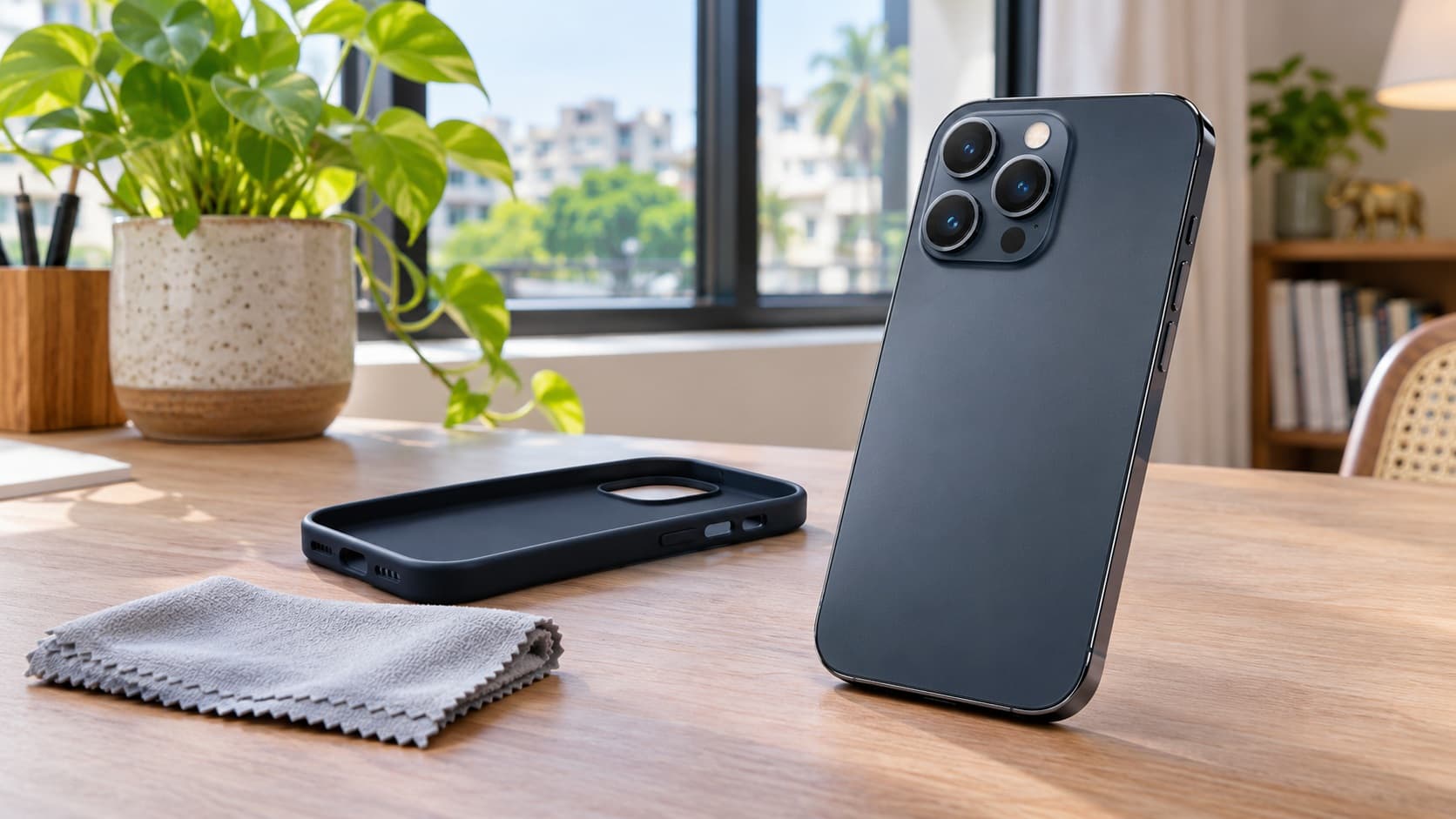
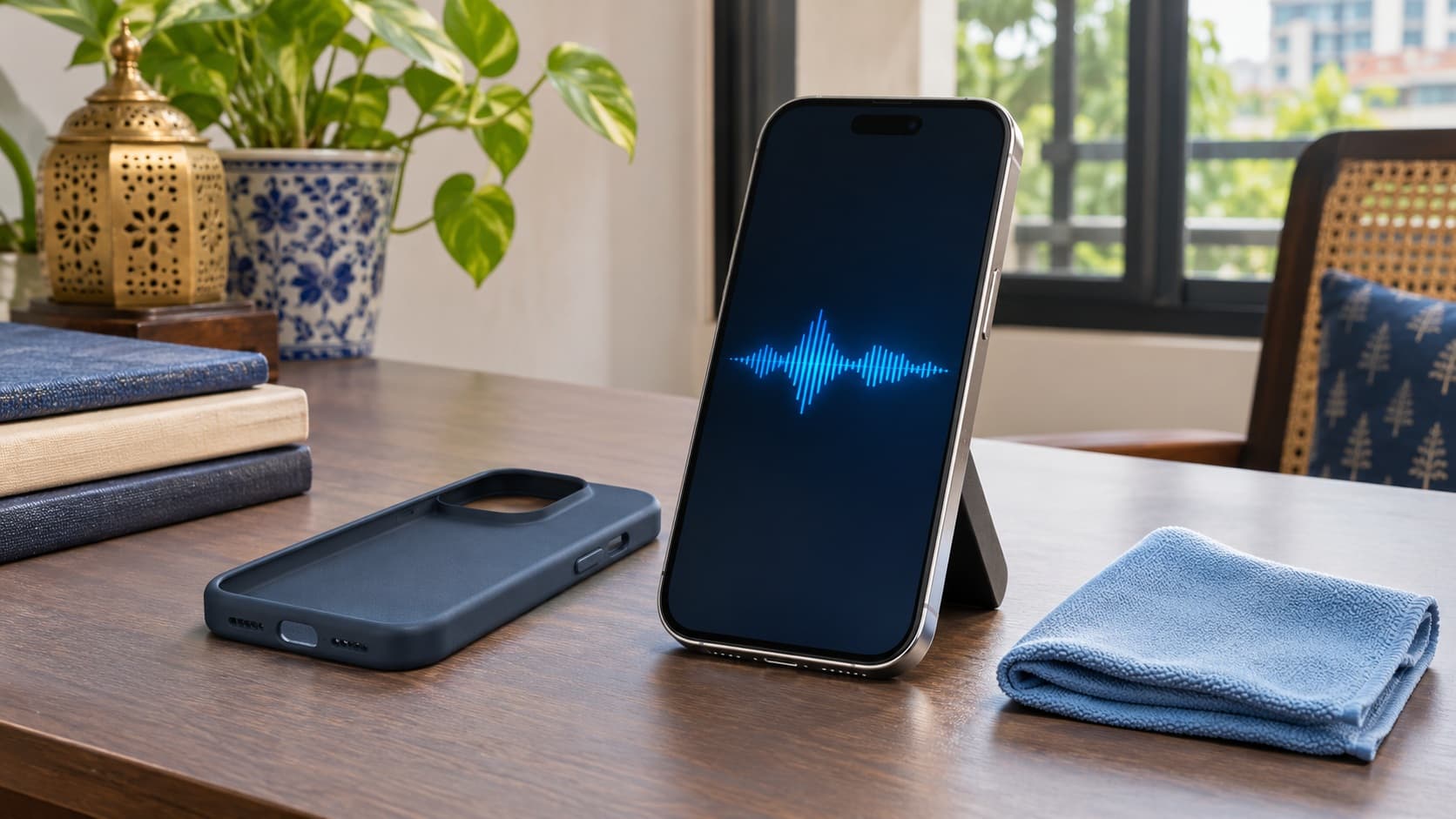
Samsung's older India connection guide identifies distance, interference and metallic covers or stickers near the antenna as possible contributors to pairing problems. Its US reconnecting guide also recommends removing third-party cases or covers that may interfere with wireless connections. For a useful comparison, try the devices nearby in an uncomplicated setting and temporarily remove an easily removable case if appropriate.
Do not turn this into a test of the maximum distance your accessory can manage. You are trying to establish whether a basic nearby connection works. Keep the phone and accessory in a convenient position, use the same ordinary task and avoid moving between rooms during the initial check. This gives you a clearer baseline to compare with the situation where the issue normally occurs.
If the connection works nearby but drops in a particular location, write that down without immediately assigning a cause. The observation can guide further checks with the accessory manufacturer or Samsung. It does not prove that the phone is defective, and it also does not establish that the accessory will meet your needs in every environment you use.
A case check should be simple and reversible. Do not pry apart a damaged handset, remove internal parts or attempt antenna repairs. If a cover cannot be removed safely, leave it alone and mention it to support. The goal is to follow a user-level troubleshooting step, not to turn a connection complaint into an unnecessary physical repair.
Compare another accessory and, where practical, another phone
Samsung's reconnecting guide recommends pairing a different Bluetooth device with the phone. If the other accessory pairs, the original accessory becomes an important part of the investigation. Check its manufacturer's support and software guidance. Treat this as a useful direction for further checks rather than claiming that one successful pairing proves every part of the handset is fault-free.
If you have access to another phone with permission, you can also repeat the original accessory's documented pairing process there. Record each combination separately: your Galaxy with the original accessory, your Galaxy with a different accessory, and the original accessory with the other phone. You do not need to buy another product just to create this comparison.
The result is most useful when you keep the activity similar. Comparing a short music test on one combination with an unrelated task on another may leave the original complaint unresolved. Explain what you actually tried. If you could not reproduce the failure during a brief check, say that; do not describe a short successful test as proof of long-term reliability.
Restart and update using the instructions for your device
Samsung's current India guidance includes restarting the Galaxy because temporary software issues can prevent Bluetooth devices from being recognised properly. Use the normal Restart option if the phone responds. The guide also describes a button restart for a frozen device. Follow the instructions appropriate to your model instead of treating a forced restart as the required first action for every connection problem.
Restart the accessory according to its own instructions where appropriate, then repeat the same pairing or listening test. Make a note of whether the problem disappears only immediately after a restart or remains absent in your ordinary use. That difference is useful when you seek help, particularly if the connection complaint is intermittent and difficult to show on demand.
Samsung also recommends updating the Galaxy software. Its current India guide directs you to Settings and Software update to check for updates, then follow the prompts. Your screen may use slightly different wording. Check through the device's supported update route and read the information shown there rather than installing an unofficial package advertised as a universal Bluetooth fix.
The accessory matters too. Samsung's guidance says wearable apps and Bluetooth device software should be up to date, and its reconnecting page highlights accessory firmware, including software for car stereos and multimedia receivers. Check the accessory manufacturer's current instructions. A handset update and an accessory update are separate steps, so record which one you completed and what happened afterwards.
If the issue began after an update, record that timing alongside the software information visible on the device. The timing is useful evidence for support, but it does not establish the cause or guarantee that a factory reset will help. Avoid promising yourself a fix based on an online report about a different model, region, accessory or software build.
Understand the Wi-Fi and Bluetooth reset before using it
When reconnecting does not resolve the issue, Samsung's India guide includes resetting Bluetooth-related connection settings. Its route is Settings, General management, Reset, then Reset Wi-Fi and Bluetooth settings, followed by the confirmation. Samsung warns that saved Bluetooth, Wi-Fi and other connection information is removed and devices may need to be paired again. Read your phone's confirmation carefully.
Prepare for that consequence before proceeding. Make sure you can reconnect to the Wi-Fi networks you need and can put essential accessories back into pairing mode. If you rely on a workplace network whose access details you do not control, arrange the appropriate help first. A connection reset is easier to manage when you understand what you will need to restore afterwards.
Samsung's support material uses both older “network settings” wording and newer separate Wi-Fi/Bluetooth and mobile-network options. Use the option relevant to the issue and the menu on your handset. Do not choose a broader reset simply because a screenshot elsewhere looks different. When you are unsure about the wording, ask Samsung to confirm the appropriate action before accepting it.
Reset Wi-Fi and Bluetooth settings and Factory data reset are different choices. Samsung's factory-reset warning says that a factory data reset erases your data and settings. Do not confuse the two because they appear under a Reset menu. If the confirmation describes erasing your phone's data, stop and check that you have selected the intended option.
After the connection reset, pair the troublesome accessory again using its manual and repeat the original test. Record whether the new pairing succeeds and whether the disconnection returns. Repeating the same reset without learning anything new can create work without improving your understanding. If the problem persists, move to diagnostics or support with the results you already have.
Run Samsung Members Bluetooth diagnostics
Samsung's current India page recommends Samsung Members Phone diagnostics when the issue continues after the preceding checks. It specifies that the app must be installed on a Galaxy device. Open Samsung Members, go to Support and follow the current diagnostics flow. The guide describes Get started and selecting Bluetooth; follow the on-screen instructions and check the result.
Save the result in a form you can refer to when contacting support. Also keep the practical observations from your tests: which accessory failed, whether another accessory worked, and whether reconnecting or restarting changed anything. A diagnostic result and a real-use symptom answer different questions. Giving support both is more useful than summarising everything as “Bluetooth broken”.
If diagnostics complete successfully but your normal connection still drops, explain that exact combination. A successful test does not mean you should ignore a reproducible complaint. Likewise, if a diagnostic check reports a problem, do not invent a component diagnosis or repair price. Share the result with Samsung and ask what further assessment is appropriate for your handset.
Before sending screenshots, check what they contain. You may only need the result and relevant software information, rather than a full screen showing personal notifications or unrelated account details. Keep a private record for yourself and provide the information requested through the support channel you choose. Clear evidence helps without requiring you to share unnecessary personal content.
When only the car connection fails
Samsung's current India instructions give a specific alternative for vehicle hands-free pairing: try searching for your phone from the vehicle's Bluetooth system rather than searching for the vehicle from the phone. Ensure the vehicle system is in pairing mode and follow the vehicle manufacturer's instructions. Carry out setup while parked safely and able to give the controls your full attention.
Record the stage at which the process stops. Does the phone appear on the vehicle's list? Does a pairing prompt appear? Does pairing complete but the connection later fail? Those descriptions can help the vehicle manufacturer or Samsung suggest a relevant next step. A general complaint that “the car will not connect” leaves these different situations mixed together.
Check the vehicle system's supported update process with its manufacturer. Samsung's reconnecting guide notes that accessory firmware updates can be overlooked for car stereos and multimedia receivers. Do not install a file intended for a different system or follow a generic reset that might remove vehicle preferences without understanding the consequences. Get the instructions for the system you actually have.
Keep ordinary Bluetooth pairing separate from a complaint about a projection app or another vehicle feature. If Bluetooth pairing works but a different feature fails, tell support that distinction. This guide's Bluetooth checks do not establish that every car integration is supported or configured correctly. Describe each feature by what it does rather than using “Bluetooth” as a name for the entire dashboard experience.
Ask for service with evidence rather than a guessed diagnosis
Samsung advises contacting support or visiting a service centre if the issue continues after its checks. A useful service request identifies the handset, software information, accessory and symptom, followed by the steps already tried. Include any visible damage or earlier repair history that may be relevant. Do not hide an intermittent fault simply because it is not happening at the moment you arrive.
Ask what the assessment will cover and whether any charge applies before authorising work. Request a written proposal that explains the recommended action, total payable amount and any conditions relevant to the repair. This article does not quote a Bluetooth repair price because your phone has not been inspected and the fetched sources do not establish a charge for your particular fault.
Explain the importance of your actual task. If you need reliable hands-free calls for work, ask how the proposed service will be checked against the complaint you described. If the failure happens only with your own accessory, ask whether bringing it would help the assessment. The service provider can tell you what is useful and how to prepare it.
Before handing over the handset, ask about data preparation and keep a usable backup appropriate to your needs. Do not assume that a connection complaint means every possible service action will leave all personal content untouched. Clarify the proposed work and your responsibilities first, especially if you depend on the phone for daily payments, account access or communication.
Keep a factory reset as a deliberate decision
Samsung's US troubleshooting page includes a factory data reset as a later step and explicitly warns that data will be erased. It also notes that a reset is not a permanent solution for an app issue that needs a future update. That is a reason to understand the proposed step and its limits rather than treating erasure as a guaranteed cure.
If support recommends a factory reset, discuss backup and account access before proceeding. Verify that the information you need has been preserved and that you understand the instructions for your handset. You can ask for help if you are uncertain. A troubleshooting decision should not be rushed merely because it is available in a menu or mentioned in a forum reply.
Repair, keep or sell: compare actual costs in India
Keeping the phone is a reasonable option when a documented reconnection, accessory update or settings change resolves the issue and the handset still meets your needs. You do not need to upgrade solely because Bluetooth once failed. Continue normal use and keep the observations until you are satisfied that the connection is dependable enough for your routine.
Repair becomes easier to assess when you have a written proposal and a clear description of what the work is intended to address. Consider the amount payable, the inconvenience of being without the phone and how well the handset serves you otherwise. Do not assume that paying for a repair automatically adds the same amount to a future selling quote.
Selling is worth comparing when you already want a different handset or the overall cost of keeping the current one no longer suits you. Request a condition-accurate quote and compare it with a replacement you have actually priced. Avoid deciding from an advertised maximum value that may refer to a different storage variant, cosmetic condition or fully working unit.
For a practical calculation, write the replacement's payable price in ₹ and subtract the confirmed amount you would receive for the current phone. Add any costs that actually apply to your chosen purchase. Then compare that cash requirement with the repair proposal and keeping the phone. Use current amounts from your own offers; there is no invented resale figure or example payout in this guide.
If you want a starting point for that comparison, find your exact handset for an instant quote. Describe an intermittent Bluetooth problem as intermittent. A phone that paired successfully during one check should not be presented as having no known issue when your ordinary use still produces disconnections.
Prepare a clear condition description before requesting a quote
A useful disclosure might say that your earphones pair but the connection drops during ordinary use, that another accessory works, and that you have already tried pairing again. Only include observations that are true for your phone. Avoid diagnosing an antenna or internal part unless a qualified service assessment has actually identified it and you can explain that assessment accurately.
Keep working functions and unresolved functions separate. You can say that a particular accessory connected during your test while also saying that your car connection remains unreliable. This gives a more accurate picture than either describing the whole phone as unusable or calling everything normal. Ask how to record a fault if a quote form does not match your situation.
Check the model and storage variant carefully when requesting offers. Keep the stated condition consistent across the buyers or exchange counters you compare. Otherwise, a difference between two numbers may simply reflect different assumptions. Save the offer details and ask what could change after inspection before you arrange a handover or commit to a replacement purchase.
Plan your data move separately from the Bluetooth investigation. The connection problem does not establish whether your personal files and protected content are ready to leave the phone. If you use private storage, ReUz's Secure Folder preparation guide can help you consider that part of the handover without mixing it up with a pairing test.
Thinking of selling your Galaxy S24 Ultra?
Once you understand the remaining issue, you can sell your Samsung Galaxy S24 Ultra through ReUz with an honest condition description. ReUz offers an instant quote in 60 seconds, free doorstep pickup, on-the-spot UPI payment and data wiped in front of you. Check the quote and inspection conditions before confirming, and complete the personal data preparation you need before handover.
The site's up to 10% more price promise concerns comparable offers for the same model, storage variant and condition band. It is not a guaranteed uplift on every offer or a fixed payout for a phone with a Bluetooth complaint. Compare like-for-like figures and check your instant quote rather than assuming the highest advertised value applies.
If you own a different Galaxy handset, search ReUz for the model you actually own. Keep your repair proposal, condition notes and replacement budget together. You can then choose to keep, repair or sell based on your own needs and current offers, with the Bluetooth issue described accurately throughout the process.
Frequently Asked Questions
Why does my Samsung Bluetooth keep disconnecting?
Samsung Bluetooth disconnections can have several causes, including a competing connection, connection-history problems, outdated software or an accessory issue. Check whether the accessory is connected elsewhere, pair it again and compare another accessory before assuming the handset needs repair. Samsung also identifies distance and interference as possible contributors. Record which combination fails and use diagnostics or support if the problem continues; a symptom alone does not identify a damaged component.
Will resetting Wi-Fi and Bluetooth settings delete my photos?
Reset Wi-Fi and Bluetooth settings is a connection reset, while Factory data reset is the separate option Samsung warns will erase your data and settings. The connection reset removes saved connection information, so prepare to reconnect networks and accessories. Read the exact confirmation on your handset before proceeding, because menu wording can vary. If the screen describes erasing personal data, stop and confirm that you selected the intended reset.
What should I check if Bluetooth fails only in my car?
If Bluetooth fails only in your car, follow the vehicle manufacturer's pairing instructions and try searching for the phone from the vehicle system, as Samsung recommends. Confirm pairing mode and check the system manufacturer's update guidance. Do the setup while parked safely. Record whether discovery, pairing or later use fails, and distinguish a Bluetooth connection problem from a separate projection-app or dashboard feature complaint when asking for support.
Should I repair a Bluetooth problem before selling my Samsung in India?
You should compare a written repair proposal with an accurately disclosed selling quote before deciding whether to repair first. A repair does not automatically increase a future quote by the amount you spend. Consider whether you intend to keep using the phone, how much the repair costs and what a replacement would require after selling. This guide provides no fixed repair charge or ReUz payout; use the current offers for your exact handset and condition.
Can I request a ReUz quote if the Bluetooth fault is intermittent?
You can request a quote and explain that the Bluetooth fault is intermittent, including what you have observed and which checks you completed. Ask ReUz how to record the issue if the condition questions do not capture it clearly. Do not describe the handset as fault-free simply because it connected during a brief test. Check your instant quote and the applicable inspection conditions before deciding whether to proceed with selling.