If your iPhone camera shows a black screen, remove accessories that could obstruct or interfere with it, restart the phone and follow Apple’s camera checks before approving a repair. Compare the front and rear cameras and record what actually fails; a black preview does not identify a particular damaged component. If the problem persists, seek an assessment and compare the written proposal with keeping or selling your phone.
If you were already considering an upgrade, you can check a sell quote for your iPhone 15 on ReUz with the camera symptom disclosed. Check your instant quote instead of assuming a fully working handset’s advertised amount applies to a phone with an unresolved issue.
Identify what you mean by an iPhone camera black screen
Start with the screen and task you can describe. Does the Camera app open with a dark preview, does a particular camera fail to show the scene, or does the entire display go dark? Is a photo saved, and what does that saved file show when you review it? Keep these observations separate rather than labelling every result “camera broken”.
Also note whether the behaviour occurs in Camera or only in another app. You may be trying to photograph a document, join a call or capture a video for work, but those are different user tasks. A clear description helps support decide what to investigate without assuming they all demonstrate the same fault.
This guide focuses on an unavailable or black camera preview and related checks. It does not diagnose a component, promise a reset will fix the phone or assign a universal repair price. Your objective is to establish enough information for a sensible next step, while keeping uncertainty visible until the handset has been assessed.
Record the starting position before changing anything
Write down which app you opened, which camera you intended to use and what appeared. Include any message shown and whether the result is constant or intermittent. If the phone was recently serviced or an accessory was added, record that sequence without declaring it the cause.
You can make this note without exposing personal information. There is no need to send support a photograph of your identity document just because the issue occurred while photographing it. Describe the failed task, or use a neutral scene if a demonstration is needed. Review anything visible before sharing a screenshot or recording.
Keep the original symptom in view throughout the checks. If a different function succeeds, note that success without treating it as proof that the camera task is resolved. Conversely, do not describe every function as failed because one preview was black. Balanced observations are more useful than either exaggeration or reassurance that the available evidence does not support.
Begin with Apple’s accessory and restart checks
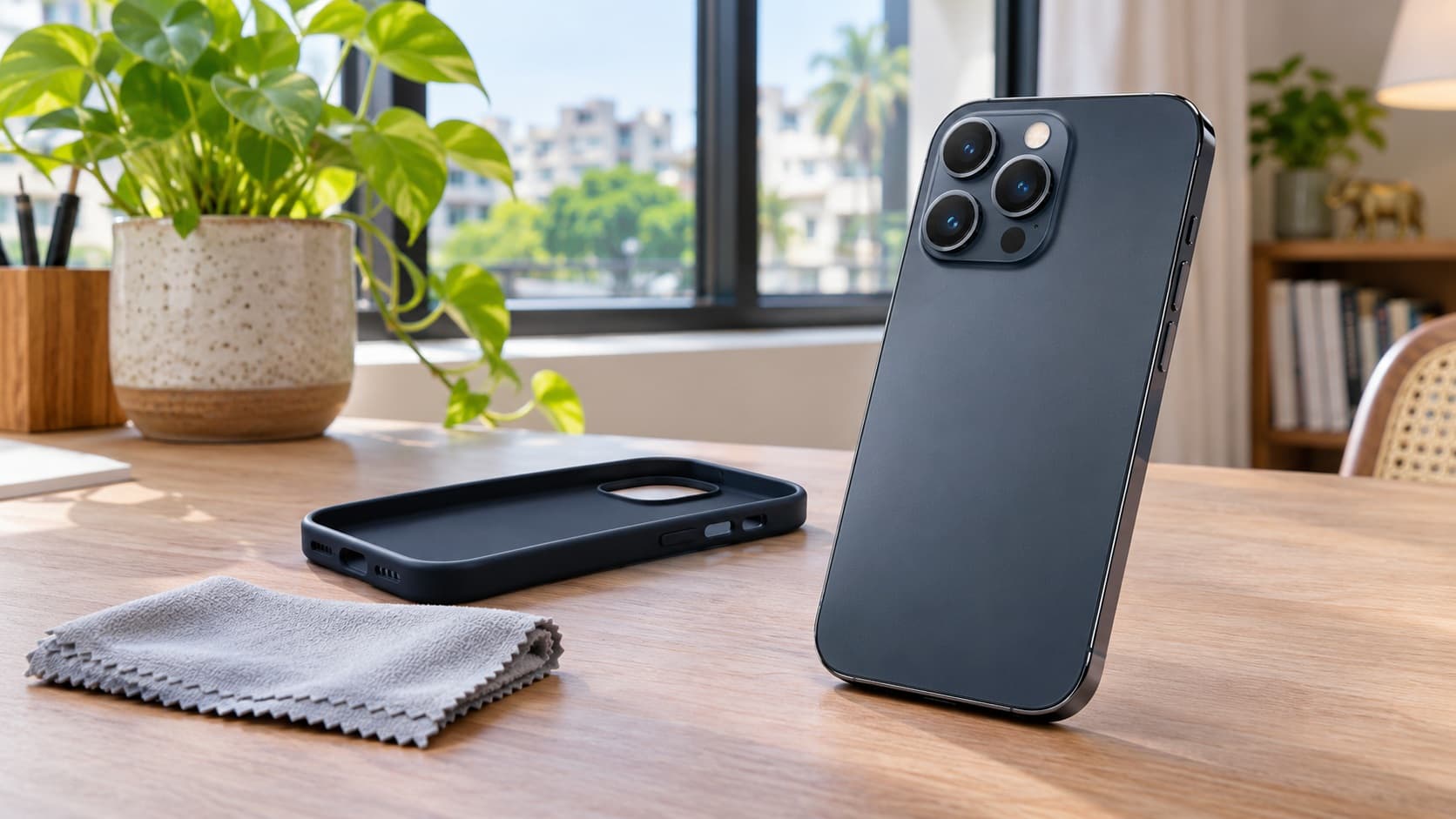
Apple’s camera support guidance recommends removing cases, films or accessories that might block the camera or flash or place a magnet near the camera. It also recommends restarting and updating the device, then checking the cameras again. Follow the applicable instructions for your handset rather than selecting unrelated reset options.
After a relevant change, repeat the task you originally needed. Record whether the app opens, whether the scene appears and whether you can obtain the intended result. A simple sequence makes the outcome easier to explain. Changing several accessories and settings together may leave you unsure what mattered.
Do not extend an obstruction check into opening the phone or probing around its camera assembly. If you see damage or cannot remove an accessory appropriately, ask for guidance. The point of the initial checks is to identify an obvious user-level issue and describe the remaining symptom, not to attempt component repair at home.
Compare front and rear cameras separately
Apple recommends checking whether one or both cameras are affected, using the camera-switch control where available. Record the result for each view. You do not need to know the internal camera layout to say which option you selected and whether it displayed the scene.
Use a neutral subject that you can recognise in the preview and any saved photo. Keep the conditions reasonably similar while making the comparison. If you change location, lighting or accessories, note that as context. You are collecting a useful account, not trying to make each picture look as impressive as possible.
A working front view does not mean you should omit a failing rear view from a service or selling description. Equally, a rear-camera concern does not establish that every other feature has failed. Present the separate results and let the assessor explain what they mean for the device.
Use this table to organise the camera checks
| What you observe | Useful next question | What it does not establish |
|---|---|---|
| Camera preview is black | Does it remain black after the relevant accessory, restart and software checks? | Which component needs replacement. |
| One camera view works and another does not | Can you provide the separate results to support? | That the whole camera system is either healthy or unusable. |
| The scene appears but the image looks blurry | Is this the same symptom as the original black preview, or a different image-quality concern? | That both problems have the same cause. |
| Flash is intermittent | What happens with the torch check and the Camera flash setting? | That an automatic flash choice is a failed camera. |
| A temperature warning accompanies the issue | Have you followed Apple’s cooling response before resuming use? | That further camera testing should take priority over the warning. |
| A provider recommends a paid repair | What findings, work and full charge are included? | That repairing first guarantees a better financial result from selling. |
This is a framework for your next conversation, not a diagnostic table. Use the row that matches what you know and leave untested points untested. You can request help without completing every comparison or deciding which part is responsible.
Keep a black preview separate from poor image quality
A preview that never shows the scene is a different observation from an image that appears but is blurry or affected by flare. Apple includes both kinds of problem in its camera guidance, but your support description should say which one you experienced. Avoid changing the complaint midway through the checks without recording the difference.
For blurry images, Apple suggests a microfibre cloth for the front and rear camera lenses. That is a surface-care step, not an explanation for every black preview. If you have both symptoms, describe them separately and ask which checks are appropriate. Do not assume that a clearer photo after cleaning resolves a different intermittent failure.
Retain a representative result only if it is useful for the enquiry. A neutral example can demonstrate a problem without sharing your private photo library. Label the task and conditions so that the provider knows what the image is intended to show. You do not need a large collection of unrelated pictures to make the complaint understandable.
Why an accessory check belongs before a repair purchase
Apple’s archived magnetic-accessory guidance explains that magnetic fields near certain rear-camera sensors can interfere with stabilisation and autofocus. Its current camera checks also tell you to remove potentially interfering accessories. This supports checking the accessory arrangement; it does not mean every magnetic product or every black screen has that cause.
If the phone is used with a mount, lens accessory or case, identify it in your record and note whether removing it changes the original symptom. Do not buy several replacements to create a test programme. Start with the equipment you actually used and ask support what further comparison would be useful.
Keep the observed result narrower than the conclusion. “The preview appeared after I removed this accessory” is useful information. “The entire camera has been repaired” is a broader claim. Repeat the ordinary task you needed and discuss recurring trouble rather than treating a single successful attempt as a permanent guarantee.
Check the torch and flash as related, separate functions
Apple recommends trying the torch in Control Centre when investigating flash trouble. It also notes that intermittent flash use may relate to Flash Auto in Camera. Record the torch result and the camera setting rather than assuming every photograph should trigger the flash.
Keep the original black-screen complaint visible while doing this. A torch result provides information about the check you completed; it does not establish the condition of every camera function. If the preview remains unavailable, describe that alongside the torch result instead of allowing one successful function to replace the unresolved issue.
If you cannot interpret a setting or the instructions do not match your phone, ask for help. There is no need to select unfamiliar options because they appear near a flash control. A focused check should help explain the symptom, not create a second problem whose starting point you cannot remember.
Follow a temperature warning before continuing camera tests
Apple says temperature management can temporarily disable the flash or other camera features, and can dim the display or make it go black. Its temperature-warning response is to switch the device off, move it away from direct sunlight to a cooler environment and allow it to cool. Follow that response before continuing a camera enquiry.
If a warning appeared, include it in the incident record. Note the activity and surroundings you remember without inventing a temperature reading or declaring that heat explains every later symptom. Once use is appropriate, tell support whether the original camera issue remains.
Do not deliberately recreate a temperature warning to obtain a demonstration. Your description of the incident is enough to begin the conversation. If the phone was needed for navigation, work or a planned photograph, organise that interruption separately rather than treating urgency as evidence that more testing is appropriate.
Use the current diagnostic guidance without choosing a repair
Apple’s current camera page includes iOS Diagnostics for a black camera screen through Recovery Assistant, with Mobile Resource Inspector among its options. Follow the current linked instructions for your device or ask Apple to guide you. If the diagnostic finds an issue, its camera guidance directs you to service.
A diagnostic is a way to gather information, not a reason to approve an unexplained repair. Keep the result and the steps used with your original account. If you cannot access the described option, say so rather than choosing another recovery or erase action because its name looks related.
Before any provider asks you to perform a step that affects the phone’s wider setup or information, clarify what it changes and what preparation is needed. You can request support without assuming that every recovery-screen option is a harmless camera check. Keep the action tied to the instructions actually given for your device.
If you are considering replacement after those checks, explore ReUz’s Apple selling options with the camera issue accurately described. Request an assessment alongside any service proposal instead of planning around a good-condition offer that does not match your handset.
If the problem appears only inside another app
Record the exact app and task involved, then compare it with what you observed in Camera. You might be trying to photograph a receipt, join a video session or capture something within a service. Tell that app’s support team which task fails and what happened during the comparison.
Do not assume an app-specific failure proves that a physical camera needs replacement. Equally, do not claim the phone is fully working merely because one app succeeds. Give each provider the results relevant to its enquiry and ask what further information it needs. A precise task description is useful even when the cause remains unknown.
If you are asked to change settings or remove an app, first understand the effect on the information and access you need. Avoid using a destructive action as an experiment when you have not confirmed what must be retained. Keep your support notes so that a later service provider can see what was tried and what remained unresolved.
Make intermittent failures understandable without endless testing
For an intermittent issue, note a few representative incidents rather than repeatedly opening the camera until something fails. Include successful attempts as context without deleting the earlier complaint from your account. You can say that the symptom has not recurred since a particular check without promising it can never return.
Tell the service provider before the appointment that the black preview may not appear during a short demonstration. Ask what evidence is useful. A written description may be enough; if a demonstration is requested, use a neutral subject and review anything personal visible in the recording.
If the phone works at the appointment, ask how the history and present result will be assessed together. Do not feel obliged to invent a component diagnosis to make the concern sound credible. The useful information is what happened, how often you observed it and what the relevant checks established.
Two examples of choosing a useful next step
One view works while the other remains black
Imagine that Camera opens and shows a scene using one option, but switching to the other view produces a black preview. You complete the relevant user checks and the difference remains. Your useful next step is to give support that comparison and ask for assessment, rather than deciding that the working view proves the phone needs no attention.
Keep the description narrow. You know which options you selected and what appeared; you have not established which internal part needs work. If you are also requesting a sell quote, disclose the failing task and the working result together. That lets the assessor consider the condition without relying on either an exaggerated failure claim or an incomplete “camera works” statement.
The camera works after an accessory is removed
In a different example, the preview returns after a relevant accessory check. Record the change and try the ordinary task you needed under appropriate conditions. If the issue remains absent, you can consider whether keeping the phone meets your needs, while retaining the incident history for a later enquiry.
If the concern returns, take the sequence to support. You do not need to repeat the accessory change indefinitely or buy another product to make the story convincing. The before-and-after account is useful because it describes what happened without converting one improved attempt into a guarantee that no further assessment could be needed.
Make the service demonstration specific and private
Before an appointment, decide how you would explain the failed task using a neutral subject. You might demonstrate opening Camera and selecting the affected view without photographing personal paperwork. If the issue is intermittent, your notes can explain what the demonstration does not reproduce.
Have the relevant accessory available only if the provider asks for it or explains why it would help. Keep receipts or earlier work references with your records where appropriate. You are preparing the information needed for the assessment, not presenting every item you own as evidence of a fault.
After the provider demonstrates a result, ask which original task has been checked and whether anything remains unresolved. A preview appearing is useful, but you still want to understand the status of the specific complaint you brought. If the provider recommends monitoring the behaviour or completing another step, keep that recommendation labelled as such rather than describing the work as finished prematurely.
This approach also helps if you seek another opinion. You can give the next provider the same starting facts, completed checks and remaining questions. There is less risk of comparing two proposals that appear to address the same camera issue but were actually based on different descriptions.
Prepare the appointment around the camera task you need restored
State your objective before approving work. You may need reliable photographs for your job, a working rear preview for ordinary use or enough assessment information to decide whether to sell. Those goals should guide the conversation instead of an assumption that you want every suggested improvement completed.
Give the provider the starting symptom, front-and-rear results, relevant accessory information and any diagnostic findings. Include known prior work or an incident that may matter, while marking uncertainty honestly. Keep proposed repairs separate from repairs already performed.
Ask what the initial assessment includes and whether you will be contacted with a proposal before paid work begins. Clarify how a change in findings would be communicated. You should be able to identify what you are authorising and what remains undecided, rather than relying on a broad promise to “fix the camera”.
Get a current India estimate for your exact phone
Apple’s India service page says inspection determines the final fee and that Apple Authorised Service Providers can set their own fees. Its estimates may be subject to tax, and delivery charges can apply. Obtain a proposal for your device and assessed issue instead of borrowing a camera-repair price for another model.
Request the full payable amount in ₹, the work included and any conditions that could change the total. Ask whether an assessment charge applies if you decline repair. Also clarify the expected time without the device and what documentation you will receive. Use the actual terms offered to you rather than an assumed policy.
If two proposals differ, compare their scope and findings before choosing the more attractive headline. One may assume different work or include an unresolved assessment stage. Ask the same questions of each provider so that you understand what the quoted amount is intended to buy.
Check coverage without treating the symptom as a verdict
Have Apple or the authorised provider explain the coverage that applies to your device and any plan. Its service page distinguishes coverage from chargeable service. A black camera preview alone does not tell you whether a particular repair will be covered or what the assessed outcome will be.
Keep purchase information, plan details and relevant service paperwork available for the enquiry. Explain the known history rather than waiting until work is proposed. If your decision depends on a covered or reduced-cost service, obtain that answer before budgeting on the assumption that nothing will be payable.
Someone else’s repair experience can suggest questions, but it is not a promise for your phone. Use the explanation and terms for your exact arrangement. You can then compare continued use, paid service or selling with the relevant costs and conditions in view.
Repairing to keep and repairing before sale answer different questions
If you want to keep the handset, judge the proposal by whether the intended outcome restores the use you need and fits your budget. You are considering continued ownership. A repair does not need to produce an equal increase in resale value to be useful for your work or daily photography.
If you intend to sell regardless, obtain an honestly described as-is assessment before spending solely for resale. Use ReUz’s phone search to find your model and explain the camera symptom. Ask how it should be recorded and whether the handset is eligible before arranging pickup.
Compare the actual as-is offer with any credible post-repair estimate after subtracting the complete repair expense. Keep the model, storage, history and remaining symptoms consistent. If the post-repair figure is only a possibility, keep it labelled that way rather than using it as a guaranteed return.
Use a camera-specific decision record
Put four items beside each other: the task that matters to you, the assessment finding, the proposed work and the full cost or offer. This keeps a camera complaint connected to a practical outcome. You can see whether an important question is still unanswered before approving a repair or accepting a sale.
For example, a proposal should explain how it addresses the unavailable view you reported. A selling enquiry should disclose that view rather than describing only the camera that worked during your check. The same original observation can support both conversations without being turned into a technical diagnosis you cannot verify.
Update the record if further findings change the choice. Earlier money spent on the phone is part of its history, not an amount a buyer must reimburse. Focus on the expense you are deciding about now and the offers or service terms actually available to you.
Before committing to a replacement purchase, identify which parts of the comparison are confirmed. You may have a written repair proposal but only a provisional selling estimate, or an assessed offer but no decision about the work needed. Keep those stages visible rather than adding them together as though every amount were final. If your purchase depends on a particular selling outcome, ask the buyer to explain the remaining conditions. You can then decide whether to proceed, gather another answer or wait until the information is clearer. That is a practical way to manage uncertainty without predicting a repair outcome or future resale value.
Describe the condition accurately in a sell enquiry
State which camera task fails, whether the symptom is intermittent and what the relevant checks showed. Include a written assessment if one exists. Avoid claiming a particular part is damaged when you only know that the preview is black, and avoid calling the device fully working because it succeeds at a different task.
If a repair was recommended but not completed, say so. If work was performed, keep the invoice and describe any remaining concern. A proposed service and a completed repair are different facts, and the distinction matters when the buyer evaluates the handset.
If the quote form does not capture your circumstances, ask ReUz how to disclose them before booking. This guide does not promise that every camera issue receives an offer, or that every buyer applies the same deduction. Check your instant quote and review the assessment rather than assigning a fixed resale penalty yourself.
Retain your information before service or handover
List the photos, files, contacts and account access you need to retain before the device leaves your possession. Confirm that the relevant information is available in the intended destination. Do not approve an erase simply to see whether it fixes the camera while you are unsure what has been retained.
For account preparation, read ReUz’s guide to iPhone security delays before selling while planning the appointment. Keep those arrangements separate from the camera assessment. A successful camera check does not confirm that your information is ready for handover, and completed account preparation does not diagnose a black preview.
Ask the provider what preparation it needs and explain any step you cannot complete. Keep private credentials under your control. You can cooperate with a service or selling assessment without exposing unrelated personal photographs or handing someone else responsibility for your private sign-ins.
Compare offers using the same camera condition
ReUz’s up-to-10%-more price promise concerns comparable offers for the same model, storage and condition. Share a recent comparable written offer for review under the terms. The claim is not an automatic extra percentage on any amount advertised elsewhere.
An offer assuming fully working cameras is different from one made after an unresolved black-preview issue is disclosed. If another amount assumes a completed repair, make that assumption explicit. Compare the actual phone in its present state, rather than combining the most favourable part of several incompatible offers.
This article does not quote a ReUz payout for a camera fault or promise that a particular check will raise the offer. Check your instant quote and ask how the condition will be assessed. A current, accurately described offer gives your upgrade decision a firmer basis than a good-condition headline for another handset.
Thinking of selling your iPhone 15?
You can start your iPhone 15 selling enquiry through ReUz’s instant quote process, designed to take around 60 seconds. ReUz promotes free doorstep pickup, an assessment, on-the-spot UPI payment and data wiped in front of you as part of its stated selling process. Disclose the camera symptom and relevant work before arranging the visit.
For another handset, use the model finder for a fresh sell quote. Retain the information you need, confirm the handover arrangements and review the assessed offer before deciding. The up-to-10%-more promise depends on comparable offers and its terms; it is not a guaranteed payout for a black camera screen.
Frequently Asked Questions
Does an iPhone camera black screen prove the camera needs replacing?
No. A black preview does not identify a particular failed component. Follow Apple’s applicable checks and seek an assessment if the issue remains. Give support the separate camera results and relevant history before approving a repair.
Why check a case or camera accessory first?
Apple recommends removing accessories that could obstruct the camera or place a magnet nearby. Its magnetic-accessory guidance also explains possible interference with certain camera systems. Record the result of the check without assuming that every accessory is unsuitable or every black preview has that cause.
Can temperature affect the camera or flash?
Yes. Apple says temperature management can temporarily disable camera features or the flash and can darken the display. Follow a temperature warning before continuing camera tests. Report the warning and any remaining camera symptom to support rather than recreating the condition.
How much does camera repair cost in India?
Get a current written estimate for the exact device and assessed issue. Apple’s India service page makes the final fee dependent on inspection and notes that authorised providers may set their own fees. Ask for the complete payable amount in ₹ and the work included.
Should I repair the camera before selling my iPhone?
Compare a disclosed as-is offer with the full repair proposal before spending solely for resale. Subtract repair expense from any credible post-repair estimate and keep inspection conditions visible. Confirm eligibility rather than assuming every unresolved camera issue will be accepted.