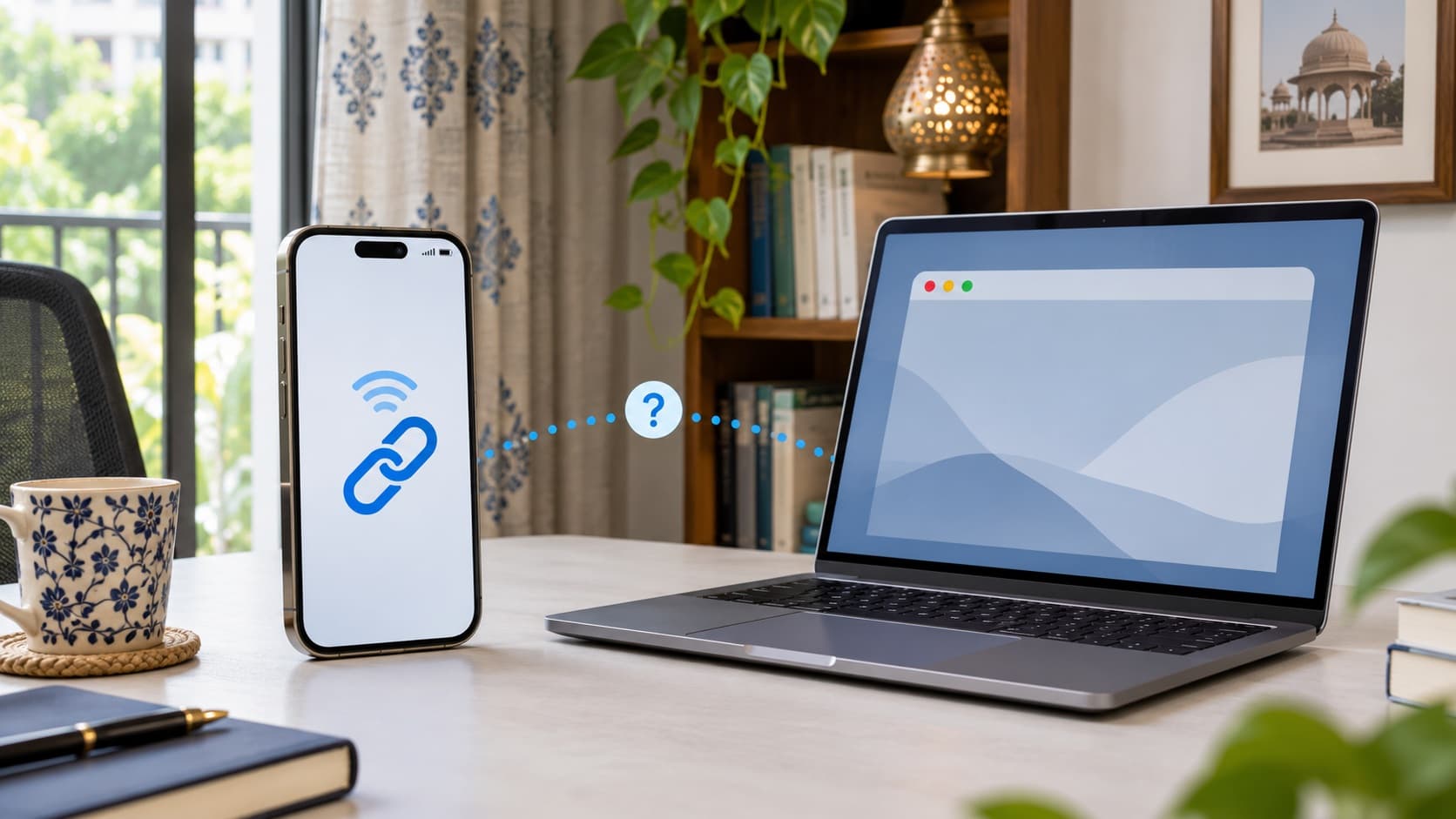
If Personal Hotspot is not working on your iPhone in India, check whether mobile data works, whether hotspot sharing is enabled and what happens on the device trying to connect. A missing hotspot option, a password error and a connected laptop with no internet are different problems. Follow the relevant Apple checks and confirm plan support with your network provider before assuming that the iPhone needs repair or replacement.
Already considering an upgrade? Check your iPhone 15 sell quote with any persistent connectivity issue described accurately. Compare an assessed offer with the outcome of troubleshooting rather than treating one unsuccessful laptop connection as proof that the whole handset is faulty.
Identify which part of the connection is failing
Start with the symptom you can observe. Is Personal Hotspot absent from Settings? Can the laptop see the phone's network? Does joining fail with a password message? Does the connection appear successful while a particular website or app remains unavailable? These questions help you choose a useful check instead of changing several unrelated settings.
Apple describes Personal Hotspot as sharing the phone's mobile data connection. That gives you two practical questions to investigate: whether the source connection is available and whether the other device can use the hotspot arrangement. Keep both in view rather than assigning every failure to the phone's Wi-Fi hardware.
Write a short description before you begin. Include the connecting device, connection method and exact error if one appears. You do not need to share the hotspot password publicly to explain that a password error occurs. Support can start with the symptom and the steps you have already completed.
This guide helps you organise the checks and decide what to do with an unresolved problem. It does not promise a particular internet speed, a universal fix or a repair diagnosis from a screenshot. Your network plan, handset and connecting device all belong in the enquiry.
Check the mobile connection before blaming hotspot sharing
Confirm whether you can use the phone's mobile data for an ordinary task under the conditions where the problem occurs. Record the result rather than assuming that visible signal bars establish everything you need to know. If the source connection is also unavailable, tell your network provider that distinction.
For Indian readers, use the support channel and terms applicable to your own active connection. Ask whether hotspot use is supported for the plan and whether any account or service issue needs attention. This article does not invent a common entitlement, allowance or price for every Indian operator.
Keep the question focused. “The phone itself cannot use mobile data here” is different from “mobile data works on the phone, but the laptop cannot join its network”. Giving the provider that distinction can prevent an unhelpful conversation about a different part of the setup.
Do not change network configuration using values copied from an unrelated plan or another owner's screenshot. If the provider asks for a configuration change, confirm that the instructions apply to your connection. A useful troubleshooting record should explain what was changed and why.
If Personal Hotspot is missing or unavailable
Apple's troubleshooting guidance says that if you cannot find or enable Personal Hotspot, check that the network provider has enabled it and that the plan supports it. Its connection guide also directs you to check Mobile Data when the option is unavailable. Follow the wording on your own handset.
Before requesting service, ask whether you have an availability question or a function that has stopped working under a previously usable setup. Both deserve an answer, but their histories are different. If you recently changed a plan or service arrangement, include that information without assuming it proves the cause.
A missing control does not, by itself, tell you which internal component needs repair. Get the account and support explanation first. If the provider confirms the relevant service position and the option remains unresolved, take those findings to Apple support with your device details.
Keep any reference or written response from the provider. If you later discuss service or a buyback assessment, you can distinguish what has been confirmed from what is still uncertain. Do not describe a problem as repaired merely because a support enquiry has been opened.
Use the correct Wi-Fi name and hotspot password
Apple's setup instructions direct you to Personal Hotspot, enable Allow Others to Join and remain on that screen while the other device connects. Select the phone's actual network name on the connecting device and use the password displayed in the hotspot settings. Check those details privately.
Be precise about which password you are using. The connecting device needs the hotspot credential, not a password remembered from another Wi-Fi network. If an error appears, compare the current setting instead of repeatedly entering a value whose source you no longer remember.
Apple specifies a hotspot password of at least eight ASCII characters. If you deliberately change it through the supported setting, make a clear note that the current credential has changed and use the new one for the connection. Do not put it in the public description of your troubleshooting problem.
Once the device joins, check the ordinary task you were trying to complete. Seeing the network in a list is not the same as joining it; joining it is not the same as confirming that your required activity works. Keep those stages separate in your notes.
Compare the main hotspot symptoms
Use the table as a way to choose the next conversation or check. It does not identify a failed part. Keep the result narrow: what you saw, what you checked and what remains.
| What you observe | First direction to investigate | Useful information to keep | Assumption to avoid |
|---|---|---|---|
| Personal Hotspot is absent or unavailable | Mobile Data and network-provider support for the plan. | The option shown and the provider's response. | The missing control proves hardware damage. |
| The hotspot does not appear on the laptop | The sharing setting, current setup screen and connecting device. | Whether the network becomes visible after the applicable checks. | A discovery problem is the same as an internet outage. |
| The laptop reports a password error | The selected network and current hotspot credential. | The message after checking the correct details. | The handset needs replacement because an old password fails. |
| The device joins but the required task fails | The phone's source connection and the specific task or device. | What works on each device under the same circumstances. | A joined network guarantees every app or service works. |
| Only one computer has the problem | That computer's connection setup and relevant administrator guidance. | Results on a second appropriate device, if available. | Every problem seen through a phone originates inside it. |
If your wider plan is already to change phones, find your exact Apple buyback page and check your instant quote. Keep the unresolved symptom visible so that the physical assessment can consider the handset's actual condition.
Restart and update through the applicable instructions
Apple's first hotspot checks include restarting both the sharing phone and the device trying to connect, then ensuring the relevant software is up to date. Use the appropriate instructions for each device. Try the connection after a step so you can identify whether the result changes.
Plan an update for a time when you can follow its preparation and completion requirements. Do not begin unfamiliar operations immediately before an important work call simply because the connection is inconvenient. A calm troubleshooting window makes it easier to record the outcome accurately.
If you first noticed a problem after a software change, include that sequence in the support description. The timing is useful information, but it is not proof of the underlying cause. Avoid declaring that an update damaged a component without an assessment establishing that conclusion.
Keep a concise record of the software information if support asks for it. A screenshot from another handset or a general discussion about a release cannot tell you the state of your own device. Describe what is actually installed and what happens now.
Consider Maximise Compatibility where available
Apple lists Maximise Compatibility as an applicable Wi-Fi hotspot check on supported devices. It also warns that using it may reduce internet performance and Wi-Fi security for connected devices. Read that trade-off rather than treating the setting as a free speed upgrade.
If the option is present and relevant, change it deliberately and compare the same connection task. Record whether it helps the connecting device. Do not use a result from an unrelated computer as a promise about the one you need for work.
If a different configuration makes the connection usable, decide whether that arrangement suits your needs. A practical temporary setup and a fully explained underlying issue answer different questions. If you still need support, report the improvement and the remaining limitation together.
You do not need to cycle through every possible camera, battery or location setting because a forum suggests changing several things at once. Keep the enquiry connected to documented hotspot controls and the actual symptom. A controlled change produces more useful evidence than a large collection of unexplained adjustments.
When the laptop connects but has no usable internet
Check what the word connected refers to on each device. You may be looking at a joined Wi-Fi network while the task you care about still fails. Record whether the phone can use its own mobile connection and whether the issue affects a general task or one particular service.
Compare a simple, non-sensitive activity before testing work systems that have their own access requirements. If one service fails while another works, say that plainly. It gives the relevant provider or administrator a narrower question than a statement that the entire internet is unavailable.
Do not use a company account, private document or payment transaction merely as a public demonstration of the problem. You can describe the failure and use an appropriate support process. The goal is to establish the scope without sharing information unrelated to the connectivity enquiry.
If a managed work computer is involved, consult its administrator before changing managed settings. You may need to distinguish the phone's sharing function from the computer's permitted connection arrangement. This guide cannot promise that a personal-device setting overrides an organisation's requirements.
Check VPN and security-software questions carefully
Apple's connectivity guidance notes that software interacting with network connections can block some connections. If relevant software is installed, consult the applicable support or administrator instructions. Its presence is a possible line of enquiry, not proof that it explains your particular failure.
Identify the software and who manages it before making changes. A personally configured app and a work-managed connection should not be treated as interchangeable. Ask what observation the proposed step is intended to test and how to return to the required configuration afterwards.
Do not remove an organisation's security setup simply to see whether the hotspot becomes convenient. Bring the symptom and the connection comparison to the administrator. A useful answer should explain what is permitted and which troubleshooting steps apply to your environment.
Record any authorised change and its result. If the complaint remains, report that outcome rather than leaving several altered settings behind and calling the investigation complete. You want both a working arrangement and a configuration you understand.
Use USB as a supported route, not a repair certificate
Apple documents USB Personal Hotspot for a computer connection. Its setup guidance includes the appropriate Apple software on Windows, a suitable USB connection and any required accessory or trust confirmation. Follow the instructions for the computer you are actually using.
If that supported route works, describe the result narrowly: the USB arrangement completes the task under those conditions. It does not establish that the original Wi-Fi complaint is resolved. Keep the two results available if you discuss the issue with support.
Likewise, a USB attempt that fails does not identify a single defective part. The computer's setup and the phone connection still need to be considered. Use appropriate accessories and seek guidance if you see damage or a connection you cannot safely assess through ordinary instructions.
Only approve a trust prompt for a computer you intend to use and control appropriately. A public support exchange does not require you to grant access to an unfamiliar device. Keep the troubleshooting setup relevant to the task and your own privacy needs.
Know what Reset Network Settings changes
Apple lists Reset Network Settings as a later hotspot troubleshooting step. It removes previously used Wi-Fi networks and passwords, mobile settings and VPN or APN settings. Review the implications before selecting it, particularly if your phone supports work or another managed arrangement.
Apple's separate Wi-Fi guidance advises consulting an administrator for a school or business network before a network reset. Do not choose a similarly named whole-device operation instead. Read the exact menu entry and confirmation on the handset and follow the applicable instructions.
Before proceeding, consider what you will need to reconnect afterwards. You should not solve one uncertain setting by creating a new access problem that you cannot restore. If the required information or permission is missing, ask the relevant provider before continuing.
After the appropriate reset and reconfiguration, test the original task and record the outcome. Repeating the reset without new information is not a substitute for support when the symptom persists. Keep the result available for the next conversation.
A network reset is different from preparing a phone for sale
A troubleshooting setting and an ownership-transfer process have different purposes. Do not describe the handset as ready for a new owner because you performed a network reset. If you decide to sell, complete the appropriate backup, account and final device preparation separately.
Keep your investigation reversible where possible while you decide whether to retain the phone. A price enquiry can happen before the final erase, allowing you to record the correct model and condition. There is no need to remove information you still need merely to obtain an estimate.
Build a useful support record before requesting repair
Prepare a short account of the failure: sharing phone, connecting device, connection method, exact symptom and checks completed. Include the network provider's response where relevant. This is enough to begin a focused conversation without a long list of unrelated internet suggestions.
If you have access to another appropriate connecting device, a comparison may help describe the scope. Record the result without turning it into a laboratory diagnosis. A problem seen with one computer and a problem repeated across several suitable setups are different observations to discuss.
Keep intermittent behaviour visible. If the connection works sometimes and fails at other times, explain the circumstances you know. Do not choose only the successful attempt when describing the handset for assessment, and do not describe every connection as impossible if that is not what happened.
Ask support what it has established and what remains uncertain. An opened case, a suggested check and a completed repair are different stages. Your description should follow the evidence rather than assuming that receiving advice means the issue is already resolved.
Test around your real use, not an imagined speed target
Decide what a usable arrangement means for you. You may need occasional document access, a dependable connection during a home broadband interruption or a workable travel setup. State the task clearly before deciding that a particular result is acceptable or unacceptable.
This guide does not promise a fixed speed in Mbps, a number of connected devices for every model or an unlimited allowance. Those claims require applicable device and service information. Ask your provider about the plan you actually hold rather than importing another subscriber's experience.
For a workday, consider when you can troubleshoot without interrupting a critical meeting. For travel, check the arrangement before departure if it is essential to your plans. Testing a familiar task in advance gives you a chance to address an issue while alternatives are still available.
Keep a practical fallback separate from a claim that the handset is repaired. If you find a supported temporary arrangement, use it within its applicable terms and continue any necessary support enquiry. A workaround can help your immediate task without answering every question about the original symptom.
Run a short comparison that answers your own question
Choose a task you can repeat
Pick an ordinary activity that represents your complaint without involving sensitive information. Record whether you can complete it on the phone itself and on the connecting device. If one result changes after an applicable step, you have a useful comparison to report. You do not need an artificial stress test or a large download merely to establish that the basic task works.
Keep the activity consistent enough that you can interpret the result. Changing the computer, location, task and settings together makes it difficult to know what mattered. You can investigate more than one factor, but record each change separately rather than turning an uncontrolled sequence into a confident explanation.
Make a small result sheet
Use simple headings in your private notes: source data usable, hotspot visible, device joined, intended task completed and issue still observed. Mark what you actually checked. If a stage was skipped or uncertain, leave it open instead of filling it in from an assumption about what normally happens.
This record is also useful if another person helps you troubleshoot. You can show where progress stops without revealing passwords or asking them to guess which screen you meant. If they recommend a step, ask which open question it answers and record the outcome before moving on.
Decide when to stop repeating the same attempt
After the applicable checks, repeating an identical failed connection without new information may not add anything to the enquiry. Bring the record to the appropriate provider or administrator instead. Explain what remains unresolved and ask what further assessment is justified for that symptom.
Conversely, if your ordinary task works after a documented adjustment, confirm it under the conditions that matter to you before making a purchase decision. You do not have to continue changing unrelated settings in search of a perfect-looking screen. The practical objective is a usable arrangement whose remaining limitations you understand.
Keep future expectations realistic
A successful comparison describes what happened in that setup. It is not a promise about every future network, location or computer. If hotspot access is important to your work, consider the support and fallback arrangements you need rather than making the handset alone responsible for circumstances outside the test.
Use the same discipline when discussing resale. A record of checks helps you describe the condition, but it does not replace inspection or establish a guaranteed price. If a problem returns before handover, update the description. If it has been resolved and the relevant function works, explain what changed without claiming a repair history you do not have.
Should you keep the iPhone, seek service or upgrade?
Keep it when an appropriate setup solves the need
If the documented checks produce a connection that meets your needs and no other concern remains, continued use may be a sensible choice. A successful settings or service clarification can save you an unnecessary purchase. Repeat the ordinary task before declaring the problem resolved.
Consider the rest of the handset separately. You may still have a genuine reason to change, but the hotspot enquiry should not become an invented diagnosis supporting that preference. Distinguish wanting a new phone from establishing that the present one has a hardware fault.
Seek assessment for a persistent unresolved complaint
If the issue persists after the applicable provider and Apple checks, request the appropriate assessment. Ask for a written explanation of any proposed work, the scope and the total payable amount in ₹. This guide does not invent a nationwide hotspot-repair price.
Understand what the service is intended to address. A broad proposal to replace parts is less useful than an explanation connected to the symptom you demonstrated. If the proposal changes after inspection, review the revised terms before deciding whether it still fits your needs.
Compare selling when changing devices already makes sense
If you intended to replace the handset regardless, get an accurately described as-is quote before spending purely to prepare a sale. Use the ReUz phone search for your exact variant and answer the model, storage and condition questions carefully.
Do not claim that the phone is fully working because mobile data works on the handset if you know a persistent hotspot complaint remains. Equally, do not label every wireless function faulty based on an unresolved connection with one laptop. Give the assessor the observations you can support.
Compare the cost using assessed figures
For a repair-before-sale decision, compare the assessed as-is proceeds with any substantiated post-repair proceeds after deducting the full service expense. Keep the later offer conditional unless it has actually been assessed under applicable terms. A repair bill does not guarantee an equal increase in resale value.
If you might keep using the phone after repair, evaluate that benefit separately. Useful continued service can justify work even when the resale return is uncertain. The decision depends on your needs and the proposal, not a universal rule that every repair should recover its cost through a sale.
For an upgrade, compare the replacement purchase terms you can claim with proceeds you can rely on from the old phone. An exchange allowance and a separate buyback estimate may each require condition checks. Keep provisional numbers visibly provisional.
There is no fixed ReUz deduction promised here for a hotspot complaint. Check your instant quote and review the final assessment. Do not calculate a guaranteed loss from a forum example involving a different model, service plan or connecting device.
Separate the replacement decision from the support outcome
Write down why you want to change phones and which part of that decision depends on resolving the hotspot complaint. If the handset otherwise meets your needs, a clear support answer may change the purchase plan. If you already need a replacement for other reasons, the same answer still helps you describe the current phone accurately.
Keep any written quote and service proposal together so you can compare their actual conditions. Review them after the relevant assessment instead of relying on a remembered maximum or a repair estimate for someone else's device.
Prepare the handset properly if you choose to sell
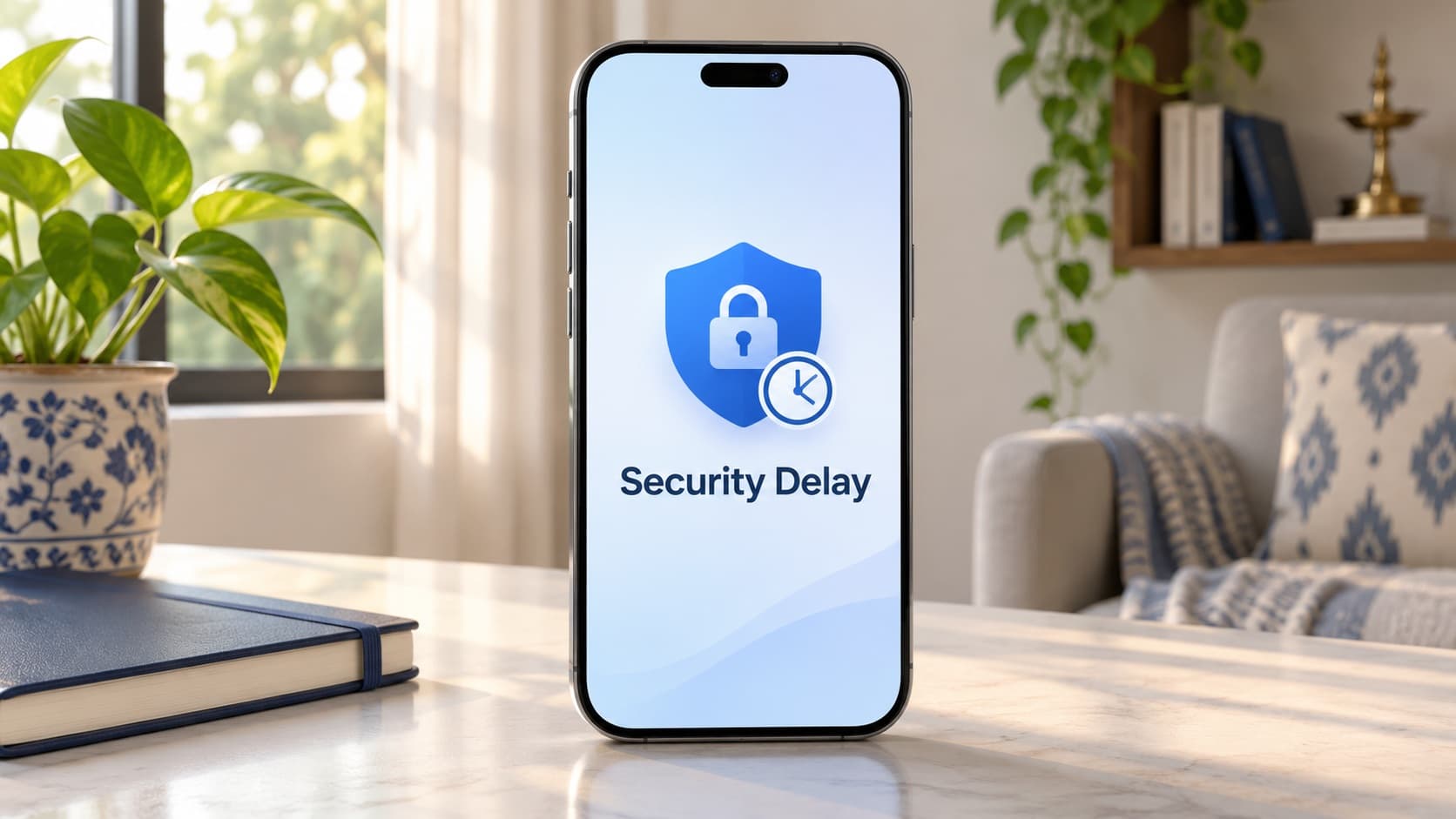
Plan your retained information and account access before the final handover. If iPhone protection settings affect the timing, read ReUz's Security Delay and pickup-preparation guide. Resolve essential owner requirements while you still control the handset.
Keep the troubleshooting record separate from private account details. The assessor needs an accurate description of the condition and any relevant service history. It does not need a public list of your Wi-Fi credentials or private verification messages to understand that a hotspot issue was investigated.
Confirm pickup availability for your address and arrange enough time to review the final offer. Tell the provider if personal preparation remains incomplete. A scheduled visit is not a reason to erase the only usable copy of something important or hand over an unresolved personal account.
Read the ReUz up to 10% more comparison terms before comparing buyers. The uplift depends on comparable quotes and factors such as model, condition and demand. It is not a flat additional 10% for every handset against any advertised number.
Thinking of selling your iPhone 15?
You can sell your iPhone 15 through ReUz after deciding whether the connection checks, support outcome or a change of handset best meets your needs. Start with an instant quote in about 60 seconds and disclose any persistent functional issue accurately.
ReUz offers free doorstep pickup in serviceable locations, an in-person assessment, on-the-spot UPI payment and data wiped in front of you. Its up to 10% more promise follows the published comparison terms. Review the assessed amount and complete appropriate owner preparation before handover.
For another model, choose your phone for a current estimate. Keep the sequence grounded in evidence: identify the symptom, check the applicable setup and service position, seek assessment when needed and compare actual offers. A failed hotspot attempt should start a useful investigation before it starts a purchase.
Frequently Asked Questions
Why is Personal Hotspot missing on my iPhone in India?
A missing or unavailable option is a reason to check Mobile Data and ask your network provider whether the service is enabled and supported by your plan. It does not, by itself, establish hardware damage. Record what the settings show and bring the provider's findings to Apple support if the issue remains unresolved.
Why does my laptop reject the iPhone hotspot password?
Check that you selected the correct phone network and entered the current password displayed in Personal Hotspot settings. Do that privately rather than sharing the credential in a help request. If the error persists after the applicable setup checks, report the exact message and connecting-device details to support.
Should I enable Maximise Compatibility for Personal Hotspot?
You can consider it as an applicable troubleshooting option where your device provides it, following Apple's guidance. Apple notes a possible reduction in performance and Wi-Fi security, so review that trade-off. Compare the same task afterwards rather than assuming the setting guarantees a faster or permanently repaired connection.
Will Reset Network Settings prepare my iPhone for sale?
No, a network-settings reset is a troubleshooting operation rather than the complete ownership-transfer preparation. It also removes previously used network configuration, so understand the reconnection requirements before using it. If you sell, prepare your retained information, account access and final device erase through the appropriate separate process.
Should I repair a hotspot problem before selling my iPhone?
You should obtain the relevant troubleshooting outcome and compare any written service proposal with an accurately described as-is offer before spending purely for resale. There is no universal deduction or guaranteed repair return established here. Check your instant quote, disclose the symptom and review the final assessment before deciding.