What to Do If Your Phone Won't Turn On: Complete Troubleshooting Guide

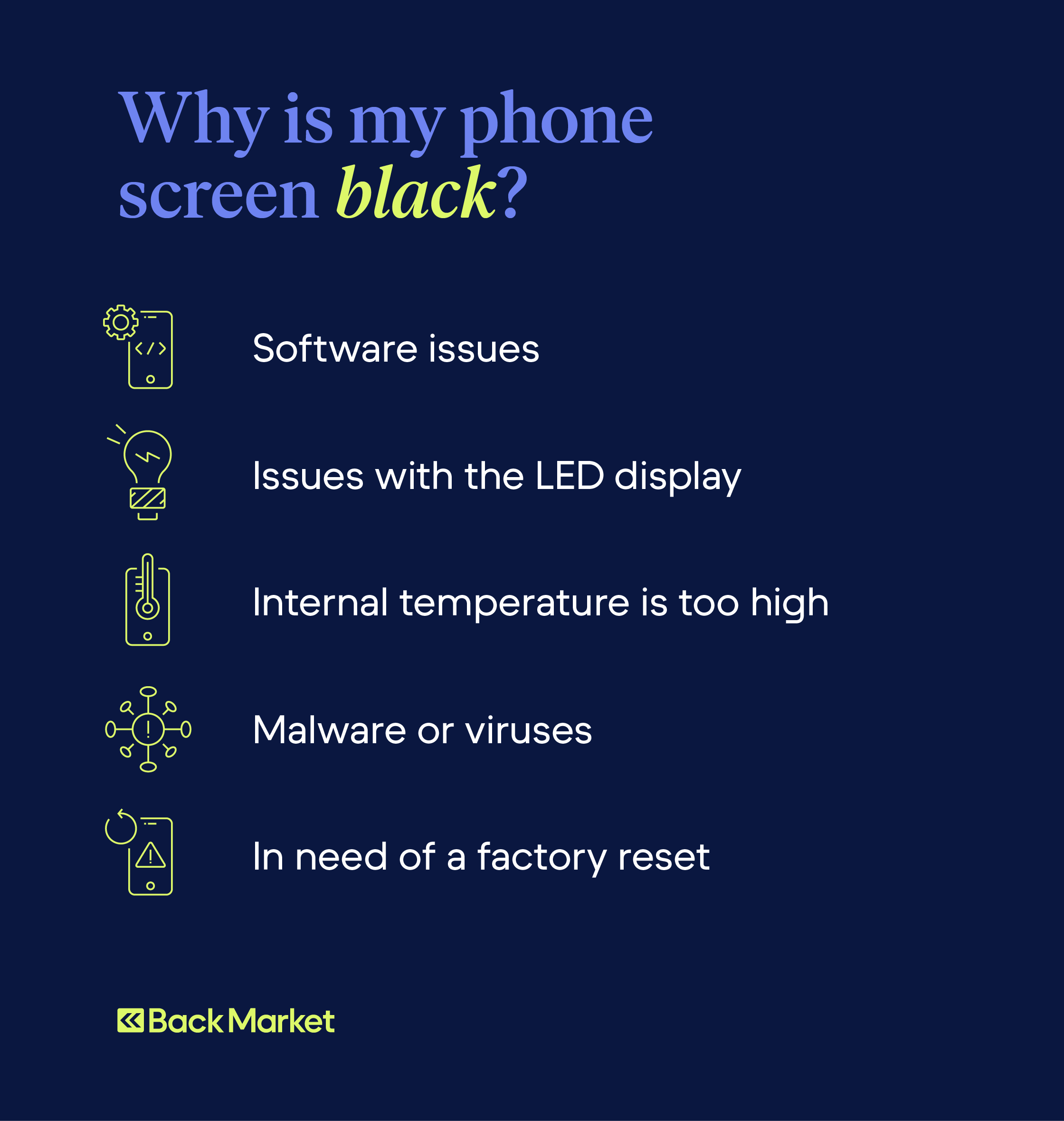
Nothing is more frustrating than pressing the power button and facing a phone won't turn on situation. Whether it's a phone black screen, phone won't charge, or complete unresponsiveness, this guide walks you through essential phone troubleshooting steps to fix phone not turning on. From simple force restart phone tricks to spotting phone hardware issues, we've got you covered for both Android and iPhone devices.
Step 1: Charge Your Phone Properly – Rule Out Battery Drain
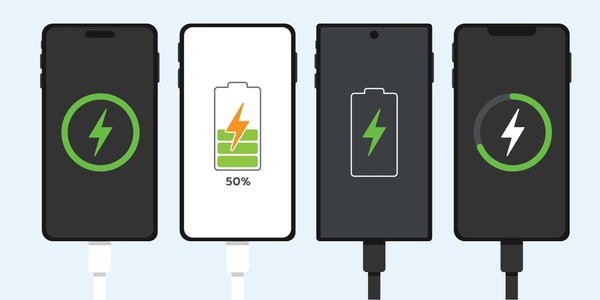
A completely drained battery is the most common reason for a phone won't power on. Grab a known-good charging cable and adapter, plug it in, and wait 15-30 minutes before trying again. Look for a battery icon or slight warmth indicating it's drawing power. If your phone won't charge, test different outlets, cables, or even a wireless charger to isolate the issue.
- Use original or high-quality cables to avoid faulty connections.
- Leave it charging for at least 30 minutes, even if the screen stays blank.
- For iPhones, charge up to an hour if no response.
Step 2: Perform a Force Restart – Revive a Frozen Device
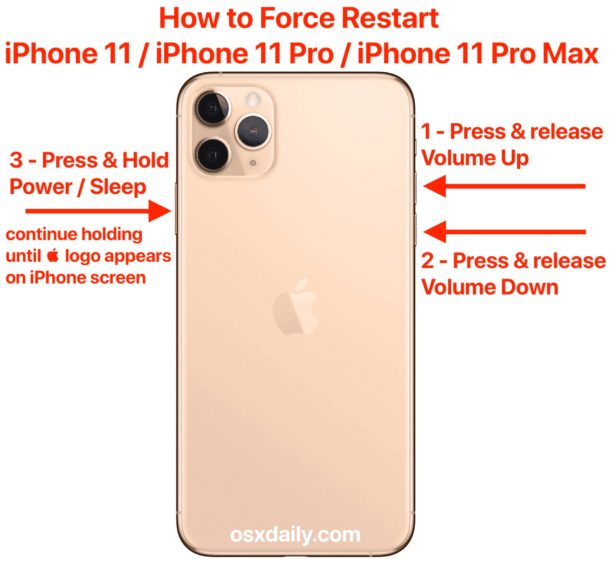
If charging doesn't help, your phone might be frozen. A force restart phone can clear temporary glitches without data loss. Steps vary by model.
For iPhones (with Face ID):
- Quickly press and release Volume Up, then Volume Down.
- Hold the Side button until the Apple logo appears (up to 10-20 seconds).
For iPhone 7/7 Plus:
- Hold Side + Volume Down until the logo shows.
For Android (e.g., Samsung, Pixel):
- Hold Power button for 30 seconds, or Power + Volume Down for 10-30 seconds until it reboots.
These phone troubleshooting basics often resolve phone black screen problems instantly.
Step 3: Boot into Safe Mode (Android Only)
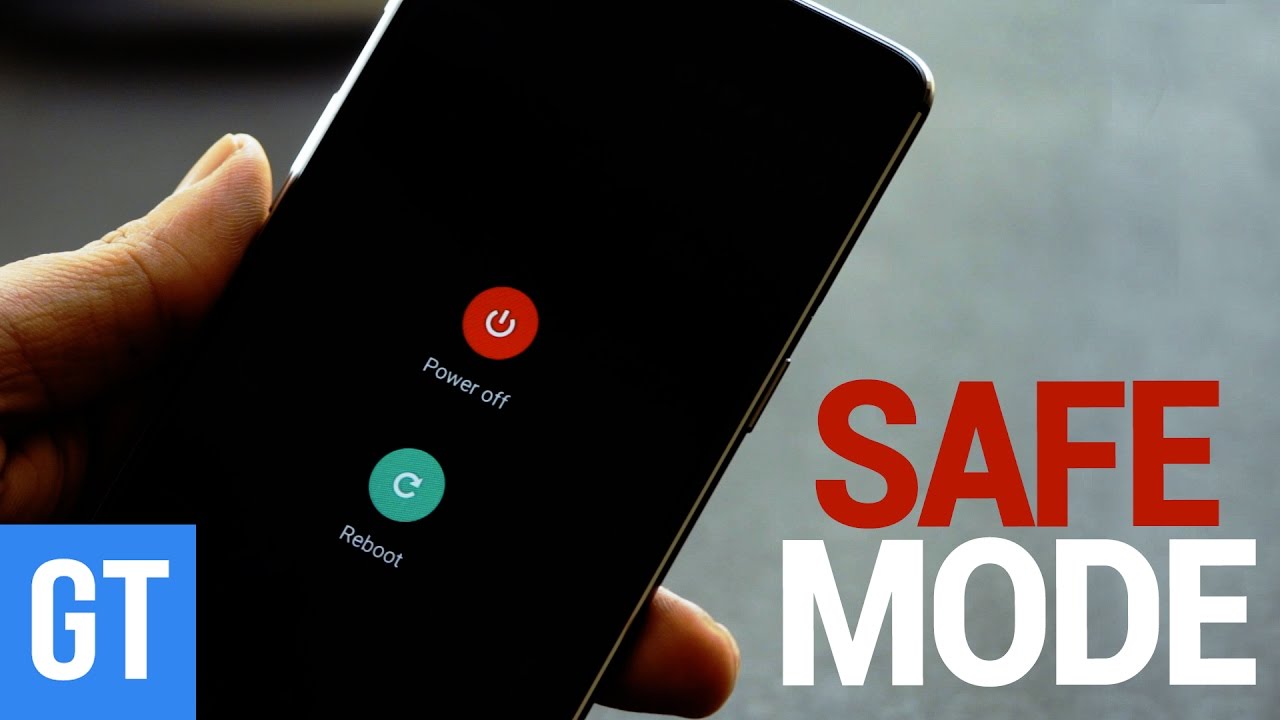
Third-party apps can cause boot failures. Enter Safe Mode to test:
- Hold Power button until boot starts, then hold Volume Down until 'Safe Mode' appears.
- If it works, uninstall recent apps and restart normally.
Step 4: Inspect for Physical Damage
Check for hidden phone hardware issues like cracks, water damage, or corrosion. Remove case, SIM, SD card, and shine a light on ports and screen. Call the phone to test vibration or ringtone. Swollen batteries or drops often mimic a dead device.
- Dry wet phones thoroughly before charging.
- Avoid heat sources; let it air dry.
Step 5: Try Recovery Mode or Factory Reset as Last Resort
For persistent phone won't turn on issues, connect to a computer for Recovery Mode. This allows firmware reinstall or phone reset, but backs up data first as it erases everything.
- iPhone: Use Finder/iTunes in Recovery Mode.
- Android: Access via button combos or PC tools.
Common Causes and Prevention Tips
Beyond basics, phone hardware issues like failed batteries, power ICs, or motherboard damage may require pro repair. Prevent by avoiding over-discharge, using quality chargers, and protective cases. Battery health directly impacts performance and longevity – keep it above 20% regularly.
If all fails, visit a repair shop for diagnostics. Quick fixes restore your phone's speed, battery life, and camera performance without buying new. Stay powered up!